Use your space admin panel to manage all job postings. View, edit, unpublish, and analyze listings from one place. Jobs are organized by status (active, draft, expired); Pro members get analytics.
Job Board Management Overview
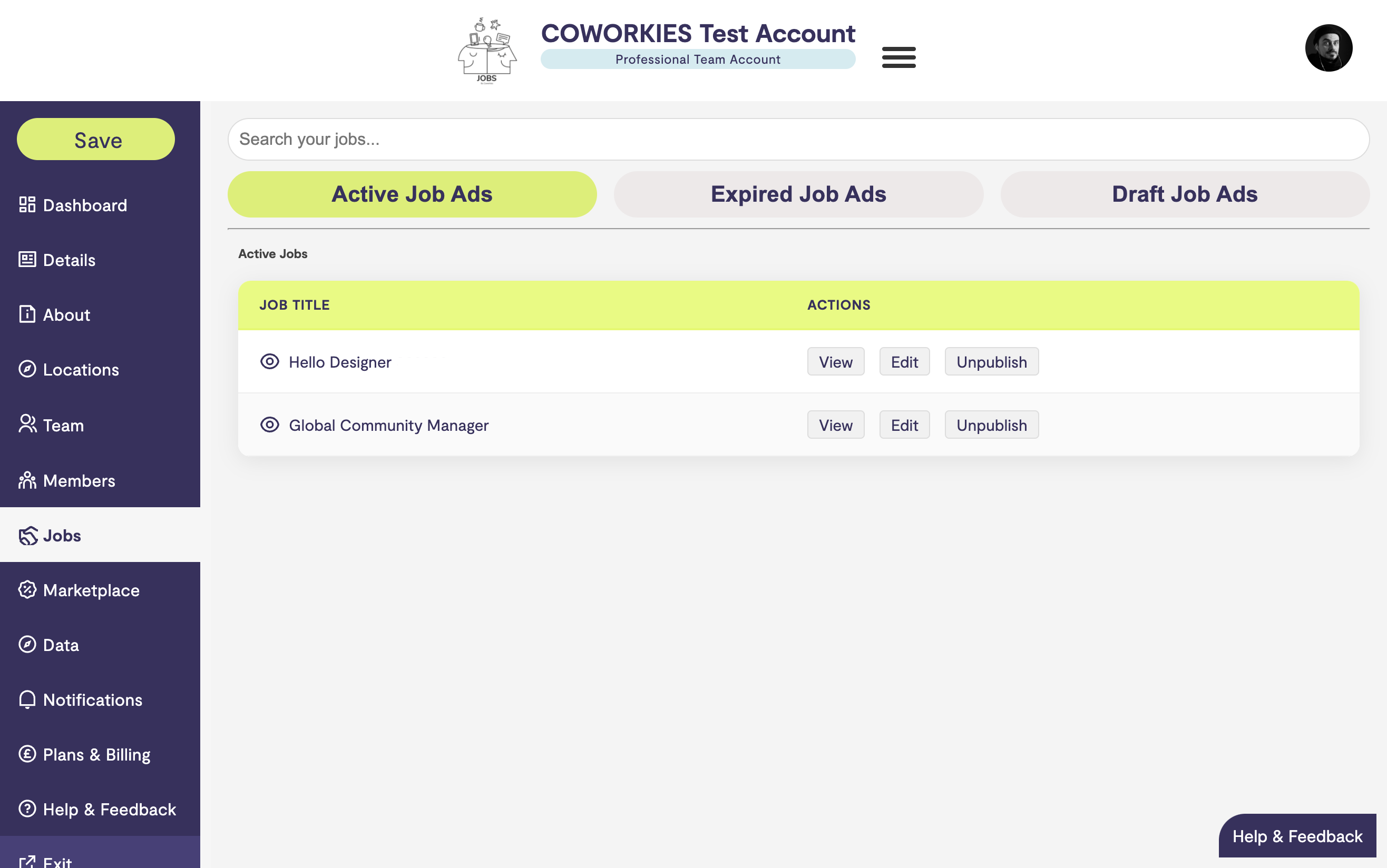
As a space administrator, you have comprehensive tools to manage all job postings for your coworking space. The job board management features allow you to view, edit, unpublish, and analyze your job listings from one central location.
Accessing Job Management
To access job management:
- Navigate to your space admin panel
- Click “Jobs” in the left navigation menu
- View all your job postings organized by status
Job Status Categories
Your jobs are organized into three main categories:
Active Job Ads
Status: Currently published and visible on the job board
Features:
- Visible to job seekers
- Appearing in search results
- Can receive applications
- Can be edited or unpublished
Management Options:
- Edit - Update job details, description, or requirements
- Unpublish - Remove from public view (can be republished later)
- View Analytics - See performance metrics (Pro feature)
Saved Drafts
Status: Started but not yet published
Features:
- Not visible to job seekers
- Can be edited and completed
- Can be published when ready
- Saved for later completion
Management Options:
- Continue Draft - Resume editing and complete the job post
- Delete - Remove draft if no longer needed
- Publish - Complete and publish when ready
Expired Job Ads
Status: Past their expiration date
Features:
- No longer visible on the job board
- Can be relisted with updated information
- Historical data preserved
- Can be renewed or updated
Management Options:
- Edit & Relist - Update information and republish
- Delete - Remove permanently if no longer needed
- Copy - Create a new job based on expired one
Managing Active Jobs
Viewing Active Jobs
From the Jobs section, you can see:
- Job title
- Posting date
- Expiration date
- Click count (Pro feature)
- Quick action buttons
Editing Active Jobs
To edit an active job:
- Find the job in your Active Jobs list
- Click “Edit”
- Update any information:
- Job title and description
- Requirements and qualifications
- Salary range
- Application instructions
- Expiration date
- Save changes
Unpublishing Jobs
To temporarily remove a job:
- Find the job in Active Jobs
- Click “Unpublish”
- Confirm the action
- Job moves to draft status (can be republished)
When to Unpublish:
- Position is temporarily on hold
- Need to update before republishing
- Want to pause applications
Managing Drafts
Completing Drafts
To finish and publish a draft:
- Go to Saved Drafts
- Click “Continue Draft” on the job you want to complete
- Fill in any missing information
- Review all details
- Publish the job
Draft Best Practices
- Complete drafts within 30 days
- Review all information before publishing
- Use drafts to prepare multiple jobs in advance
- Delete drafts you no longer need
Managing Expired Jobs
Relisting Expired Jobs
To bring an expired job back:
- Go to Expired Job Ads
- Click “Edit & Relist”
- Update information:
- Refresh job description
- Update requirements if needed
- Set new expiration date
- Adjust salary range if applicable
- Publish the updated job
When to Relist
- Position is still open
- Need to refresh the listing
- Want to extend the posting period
- Update information and repost
Job Analytics
Viewing Analytics
For Pro members, job analytics include:
- Total Clicks - Overall clicks across all jobs
- Clicks Per Job - Individual job performance
- Performance Trends - How jobs are performing over time
Using Analytics
Analytics help you:
- Identify Top Performers - See which jobs get the most attention
- Optimize Listings - Learn what works best
- Improve Descriptions - Understand what attracts candidates
- Plan Postings - Make data-driven decisions
Job Lifecycle
Understanding the job lifecycle helps you manage effectively:
- Draft - Job is being created
- Active - Job is published and visible
- Expired - Job has passed its expiration date
- Unpublished - Job was manually removed (can be reactivated)
Best Practices
Job Management
- Regular Review - Check your jobs weekly
- Update Active Jobs - Keep information current
- Complete Drafts - Don’t let drafts sit too long
- Relist Expired Jobs - Update and repost if still needed
- Monitor Performance - Use analytics to improve (Pro)
Job Posting Strategy
- Clear Titles - Use descriptive, specific job titles
- Detailed Descriptions - Provide complete information
- Regular Updates - Keep job details current
- Appropriate Expiration - Set realistic expiration dates
- Promote When Needed - Use promotion features for important roles
Quick Actions from Dashboard
From the dashboard, you can:
- Post a New Job - Quick access to job creation
- View Active Jobs - See your current listings
- Check Drafts - Review incomplete jobs
- Monitor Expired - See jobs that need attention
Troubleshooting
Job Not Appearing
If a job isn’t showing:
- Check its status (draft vs active)
- Verify it hasn’t expired
- Check if it was unpublished
- Refresh the page
Cannot Edit Job
If you can’t edit a job:
- Verify you have admin permissions
- Check that the job exists
- Try refreshing the page
- Contact support if issues persist
Analytics Not Showing
If analytics aren’t visible:
- Verify you have Pro membership
- Check that the feature is enabled
- Refresh the page
- Contact support for assistance
Related docs
- Jobs Overview – How the job board works
- Space Admin Dashboard – Dashboard overview