# Coworkies Documentation
> Coworkies is a platform for coworking spaces: job board, space directory, member network, and community tools. Free for coworkers and coworking spaces.
Source: https://docs.coworkies.com/
Index: https://docs.coworkies.com/llms.txt
---
# API authentication, responses and errors
Source: https://docs.coworkies.com/api/authentication/
> Use API key headers, understand scopes and response envelopes, and handle validation, authorization and rate-limit errors.
## Send the key in a header
Use one of these headers for authenticated requests:
```text
X-API-Key: YOUR_API_KEY
```
```text
Authorization: Bearer YOUR_API_KEY
```
The API also accepts `?api_key=`, but prefer headers to keep secrets out of URLs and access history. Store keys server-side and replace any key that is exposed.
## Permissions and key types
| Scope | Use |
|---|---|
| `read` | Read resources covered by the API. |
| `write` | Read and write resources; includes read access. |
| `jobs:read` | Read job listings. |
| `jobs:write` | Create/update jobs through POST and unpublish jobs. |
| `spaces:read` | Read space endpoints. |
| `cities:read` | Read city lookups; broad `read` also covers this. |
| `events:read` | Read event endpoints. |
`cwk_rstr_` keys are read-only; `cwk_live_` keys allow the configured write permissions. A prefix is not a permission grant by itself. The key's configured scopes and space restrictions still apply. A job-write scope alone does not grant every read scope; choose the permissions needed for both setup and writing.
## Response format
Success responses contain `success`, `status` and `data`. The shape of `data` depends on the endpoint: jobs use `data.jobs`, while cities and spaces return arrays.
```json
{
"success": false,
"status": 422,
"error": {
"code": "validation_error",
"message": "Validation failed",
"details": ["Job title is required"]
}
}
```
`error.details` is not always an array. For rate limits and permission errors it can be an object. Check its type before iterating. Handle network errors and non-JSON responses as well as API errors.
## Fix common errors
| HTTP status | Action |
|---|---|
| `400` | Check JSON syntax and the request format. |
| `401` | Check the key, expiry, revoked status and any IP restrictions. |
| `403` | Check the required scope and whether the job belongs to the key's space. |
| `404` | Check the endpoint or resource identifier. |
| `405` | Use the endpoint's supported HTTP method. |
| `409` | An idempotent request may still be processing; retry after a short delay. |
| `422` | Correct the fields listed in `error.details`. |
| `429` | Wait for `error.details.retry_after_seconds`, then retry with backoff and jitter. |
| `500` | Retry cautiously; include context in a support report without sharing secrets. |
Job write operations are rate-limited per key. The reference gives a fallback of 120 writes per minute, but a key's configured limit takes precedence. Use the returned limit and retry delay rather than assuming a quota.
For retries of **job creation**, reuse an `Idempotency-Key` for the same logical request. The reference documents successful response replay for 24 hours. Use a new key for a different operation. See [Jobs API](https://docs.coworkies.com/api/jobs/) for a complete example.
---
# Getting Started
Source: https://docs.coworkies.com/getting-started/
> Step-by-step onboarding checklists for coworking space operators and coworkers.
Choose the onboarding checklist that matches your role on Coworkies:
- **[Set up your coworking space](https://docs.coworkies.com/getting-started/space-owner-journey/)**: Find or add your space, access Space Admin, complete your public profile, verify team & community members, and connect your job board or API keys.
- **[Getting started as a coworker](https://docs.coworkies.com/getting-started/coworker-journey/)**: Create your account, complete your professional profile, connect with your space community, and browse coworking, hospitality and workspace jobs.
---
# How do I create a Coworkies account?
Source: https://docs.coworkies.com/coworkers/create-account/
> Create your Coworkies account in three steps: fill the signup form, choose your city, and select your coworking space. Free for all coworkers.
Create a free Coworkies account in three steps. You need an email address and a username. The signup process takes less than 2 minutes.
## Steps
### 1. Fill out the signup form
Go to [coworkies.com](https://www.coworkies.com) and click "Sign Up." Enter your email and choose a username. You will receive an activation email.

### 2. Choose your city
Select your city from the dropdown list. If your city is not available, type it in and select it. The system will automatically add it.

### 3. Select your coworking space
Choose your coworking space from the list. If your space is not listed, type the name and select it. Note: selecting a coworking space is required for full account activation.

## Complete your profile
After signup, you'll be redirected to your account settings. Fill in your professional profile to make yourself discoverable:
- **Photo** -- Add a professional photo
- **Occupation** -- Your job title or profession
- **Short description** -- Brief bio about you
- **Skills** -- Professional and casual skills
- **Social links** -- Links to your online profiles

## Troubleshooting
**"The system detected misbehavior, please reload the page!"**
Coworkies uses Google ReCAPTCHA to prevent spam. If you see this message, reload the page and try again. If the problem persists, try a different browser or disable browser extensions that may interfere with ReCAPTCHA.
## Related docs
- [Account Settings](/coworkers/account-settings/) -- Manage your profile
- [Getting Started: Coworker Journey](/getting-started/coworker-journey/) -- Full onboarding guide
- [People Directory](/coworkers/directory/) -- Browse other coworkers
---
# How does the Coworkies job board work?
Source: https://docs.coworkies.com/jobs/overview/
> Coworkies Jobs covers coworking, hospitality and workspace roles. Any signed-in user can post for free, with an optional space association; employers can also choose paid promotion.
Coworkies Jobs connects employers and candidates for roles in coworking, hospitality and workspaces. **Any signed-in user can choose free posting**, including users without a space. Space admin access is not required. To reach a wider audience, you can promote jobs on the main Coworkies job page for 30 or 90 days. Partner coworking spaces get special discount codes for their members.
## How it works
1. **Free posting** -- Sign in, choose Free and confirm the preview to publish without a card payment. Selecting a space is optional.
2. **Paid promotion** -- To feature a job on the main [Coworkies Jobs page](https://www.coworkies.com/jobs), choose a 30-day or 90-day promotion plan.
3. **Partner discounts** -- Partner coworking spaces receive promotional codes their members can use for discounted promotion.

## Who can post jobs?
- **Any signed-in user** can post free jobs through the main Jobs area, with or without a space. See [Manage your job postings](/jobs/job-board-management/).
- **Anyone** can post a promoted (paid) job, with or without a Coworkies account.
- Employers can recruit for coworking, hospitality and workspace roles, as well as jobs with startups or companies working from a space.
## Job types supported
- Full-time
- Part-time
- Freelance
- Internship
- Remote-friendly positions

## Key features
- Free posting for signed-in users, with optional space association
- Paid promotion on the main job page (30 or 90 days)
- Job templates to speed up posting
- Salary range fields (optional but recommended)
- Application URL or email for candidates
- Job tags for discoverability
- Company logo and photo upload
## Limitations
- Confirmed free jobs can appear in public listings while active and unexpired; they do not include the paid promotion package.
- Paid promotion uses Stripe, unless the post is included in your Pro allowance.
- Free and promoted jobs expire after the duration shown for the selected plan.
## Related docs
- [Add a Free Job](/jobs/add-free-job/) -- Post a free job with your account
- [Add a Paid Job](/jobs/add-paid-job/) -- Promote a job on the main page
- [Job Board Management](/jobs/job-board-management/) -- Manage your job listings
- [Job Discounts](/jobs/job-discounts/) -- Bulk order discounts
---
# Open and use Space Admin
Source: https://docs.coworkies.com/spaces/space-administration/
> Access the correct space, understand the available sections and save changes before checking your public page.
Space Admin lets authorized operators edit a coworking space. You need to be signed in with an **Admin/owner** or **Team Member/staff** role for that particular space.
## Open the correct space
1. Sign in to Coworkies.
2. Open **Manage Spaces** in the navigation and select your space.
3. Alternatively, use the edit control on your space's public page when it is available.
4. Check the space name before editing, especially if you manage more than one listing.
The admin URL uses the space's numeric ID: `/spaces/{space_id}/editspace`. Knowing the URL does not grant access.
## Available sections
| Section | What to do there |
|---|---|
| **Details** | Edit name, category, address, logo, cover and contact/social links. |
| **About** | Edit the short introduction, story, team photo and gallery. |
| **Team** | Review operators and change eligible team roles. |
| **Members** | Review connected members and their relationship to the space. |
| **Jobs** | Manage space job postings and open [Career portal & brand colors (Beta)](https://docs.coworkies.com/spaces/career-portal/) for custom domains, embeds and brand colors. |
| **Marketplace** | Read partner offers and follow their available links. |
| **API Keys** | Create and manage integration keys when the space has Pro access. |
| **Activity Log** | Review recorded changes, their date and actor. |
| **Help & Feedback** | Find support contact information and the feedback widget. |
| **Exit** | Return to the public space page. |
## Save and check your changes
For profile edits and relationship changes, use **Save** in the sidebar and wait for the success message. Changing tabs is not a substitute for saving. API key actions use their own buttons.
Use **Exit** to inspect the public result. If a change is missing, return to the correct space, save again and read any error message. Keep a copy of longer text before refreshing after a failed save.
## If you cannot open Space Admin
Joining a space or making it your current space does not give you management access. Ask an existing operator to check your role, or contact [Help & Feedback](https://docs.coworkies.com/spaces/help/) if ownership needs verification. A pending listing may need confirmation before its admin page is available.
Next: [Edit your profile](https://docs.coworkies.com/spaces/profile/), [manage your team](https://docs.coworkies.com/spaces/space-team-management/) or [review members](https://docs.coworkies.com/spaces/members/).
---
# What can I do on Coworkies.com?
Source: https://docs.coworkies.com/about/what/
> On Coworkies you can find coworking, hospitality and workspace jobs, create a coworking profile, connect with professionals, explore spaces, and post events. For spaces: promote members, run a job board, drive desk sales.
On Coworkies you can find job opportunities in coworking, hospitality and workspaces, create a coworking profile to promote your work, connect with professionals from coworking spaces, explore spaces by city, and stay informed about events. Spaces can empower members, promote their space and events, run a custom job board, and drive desk sales.
The initial need for Coworkies was to see members in other coworking spaces to work with. So with this idea in mind, our job board now serves coworking, hospitality and workspace employers and candidates alongside the space community tools.
#### For people ([Learn More](https://gohugo.io/getting-started/installing/))
- find coworking, hospitality and workspace jobs, as well as opportunities from people and companies working in coworking spaces
- have one coworking profile to promote and show your work
- be local and global at the same time
- connect with and look for other coworking professionals from coworking spaces in your city or around the world
- find likeminded coworking communities you belong to
-stay informed about activities and events available in their coworking scene
#### For spaces ([Learn More](https://gohugo.io/getting-started/installing/))
- empower your members
- promote your space, events and initiative to targeter audience
- have custom job-board promoting job opportubities from thier members
- drive sales for available desks and event spaces
- form partnerships with other spaces from around the world
## Related docs
- [Create an Account](/coworkers/create-account/)
- [Adding a Space](/spaces/add-a-space/)
- [Jobs Overview](/jobs/overview/)
---
# About Coworkies
Source: https://docs.coworkies.com/about/
> Coworkies connects employers and candidates for coworking, hospitality and workspace jobs, alongside a coworking space directory, member network and community tools.
Coworkies connects employers and candidates for jobs in coworking, hospitality and workspaces. It also provides a coworking space directory, member network and community tools. Founded in 2016 in Berlin by Pauline Roussel and Dimitar Inchev.
Coworkies is an online platform dedicated to empowering coworking spaces. Our mission is to promote their members, available jobs, and create a thriving space for collaboration.
Our journey began in January 2016 when we sought to connect with other coworking space members in Berlin and worldwide.
Currently, we collaborate with over 700 coworking spaces globally, and we invite you to join our vibrant community: https://www.coworkies.com/signup
We value community-driven development and rely on your feedback to enhance our platform. Feel free to share your thoughts, report bugs, or offer suggestions – together, we can make Coworkies even better!
Come shape the future of coworking and discover limitless opportunities for growth and connections. We're thrilled to welcome you aboard!
## Related docs
- [What is Coworkies?](/about/what-is-coworkies/)
- [FAQ](/faq/)
- [Contact](/contact/)
---
# Read, create and unpublish jobs through the API
Source: https://docs.coworkies.com/api/jobs/
> Use job filters, correct pagination, validated creation payloads, idempotency and space-scoped unpublishing.
## Read active jobs
**`GET /v2/jobs`** requires `jobs:read`, broad `read`, or another scope that grants the required read access.
| Query | Meaning |
|---|---|
| `q` | Search title, company and tags. |
| `job_type` | `fulltime`, `parttime`, `freelance` or `internship`. |
| `remote` | Filter remote work with `true` or `false`. |
| `city` | City slug, such as `berlin`. |
| `page`, `per_page` | Used when server-side pagination is enabled; maximum 50 per page. |
```bash
curl --fail-with-body --max-time 30 'https://api.coworkies.com/v2/jobs?city=berlin&job_type=fulltime' -H "X-API-Key: ${COWORKIES_API_KEY}"
```
A space-scoped key returns that space's jobs. Read the array in `data.jobs`. If `data.pagination` exists, use `has_next` and `current_page` to fetch further pages. Otherwise the server returns the complete matching list with `data.total`; do not assume `per_page` limits it.
## Create a job
**`POST /v2/jobs`** requires `jobs:write` or broad `write`. Send JSON.
| Required field | Value |
|---|---|
| `title` | Job title. |
| `company` | Hiring company name. |
| `description` | Text or basic HTML (`p`, `br`, `ul`, `ol`, `li`, `h2`, `h3`, `strong`, `em`, `a`). |
| `job_type` | `fulltime`, `parttime`, `freelance` or `internship`. |
| `tags` | Comma-separated tags. |
| `id_city` **or** `city_name` | Confirmed city ID or a name the API can resolve. |
Optional fields include `external_url` (original listing), `apply_url` (application destination), `is_remote` (`0` or `1`), `inv_email`, `currency` (`EUR`, `USD`, `GBP`), `sal_min`, `sal_max`, `id_space` and `id_plan` (default `5`). `sal_min` cannot exceed `sal_max`. Check the full reference for all optional fields.
The key's space is assigned automatically. A conflicting `id_space` is rejected. Tags are trimmed, lowercased and deduplicated. City-name resolution tries an exact match and then a prefix match; use a confirmed `id_city` when the name is ambiguous. The source URL receives a Coworkies referral parameter.
```bash
# Use a unique value for a new job; retain it for retries of this request.
COWORKIES_JOB_REQUEST_ID='space-job-community-manager-001'
curl --fail-with-body --max-time 30 'https://api.coworkies.com/v2/jobs' -X POST -H "X-API-Key: ${COWORKIES_API_KEY}" -H 'Content-Type: application/json' -H "Idempotency-Key: ${COWORKIES_JOB_REQUEST_ID}" -d '{
"title": "Community Manager",
"company": "Example Workspace",
"description": "Lead member experience at our Berlin workspace.",
"job_type": "fulltime",
"city_name": "Berlin",
"tags": "community,events,hospitality",
"apply_url": "https://example.com/careers/apply",
"is_remote": 0,
"currency": "EUR",
"sal_min": 35000,
"sal_max": 45000
}'
```
### Check the publication result
For a confirmed **Pro space**, a new API job can be published as **`active`** automatically. Other space-key jobs start as **`draft`**. Trusted platform importers can also auto-publish. The client cannot force the initial status by adding a `status` field.
Always inspect `data.status`, `data.action`, `data.job_id` and the returned view/edit/payment links. Success alone does not mean a job is publicly visible. Follow the returned edit or payment route when further action is needed.
### Deduplication and retries
The API matches a fingerprint of normalized title, company, city and source URL. A match updates the existing job; `data.action` distinguishes `created` from `updated`. An existing expired or paused job is not automatically made active by a matching update.
An `Idempotency-Key` (up to 200 characters) avoids repeating a successful creation on an exact retry. Reuse it for that request, use a new one for a new operation, and handle an in-flight `409` or rate-limited `429` as described in [API errors](https://docs.coworkies.com/api/authentication/).
## Unpublish a job
**`POST /v2/jobs/unpublish`** requires job write access and a job belonging to the key's space.
```bash
curl --fail-with-body --max-time 30 'https://api.coworkies.com/v2/jobs/unpublish' -X POST -H "X-API-Key: ${COWORKIES_API_KEY}" -H 'Content-Type: application/json' -d '{"job_id": 1234}'
```
Replace `1234` with the saved `data.job_id`. A successful removal returns an expired status and an `unpublished` action. A job already expired or closed returns `already_unpublished`. This removes the listing from active results; it does not delete the job record.
---
# Find a coworking space
Source: https://docs.coworkies.com/spaces/directory/
> Browse coworking spaces by city and understand the information shown on a public space profile.
The public directory groups coworking spaces by city. You can browse it without signing in.
## Find a space
1. Open [Cities on Coworkies](https://www.coworkies.com/cities).
2. Choose a city, then its spaces listing.
3. Select a space name or **Learn More** to open its profile.
4. Use **Load More** when more spaces are available.
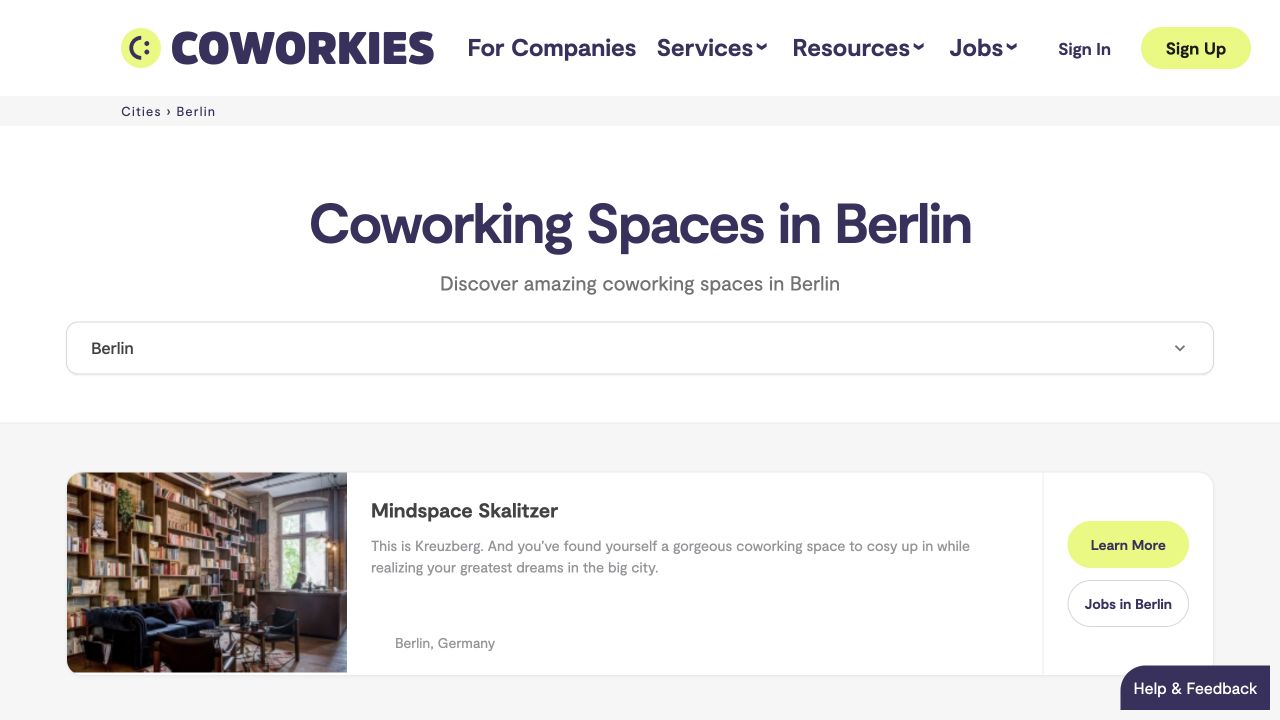
*Live directory screenshot, captured 4 October 2026. Listings change over time.*
## Read a space profile
The header shows the space's name, city and available website/social links. **About** contains the story, team information and photos that the operator has supplied. Other visible tabs can include **Community**, **Love Letters** and **Jobs**. A section can be empty if no content has been added.
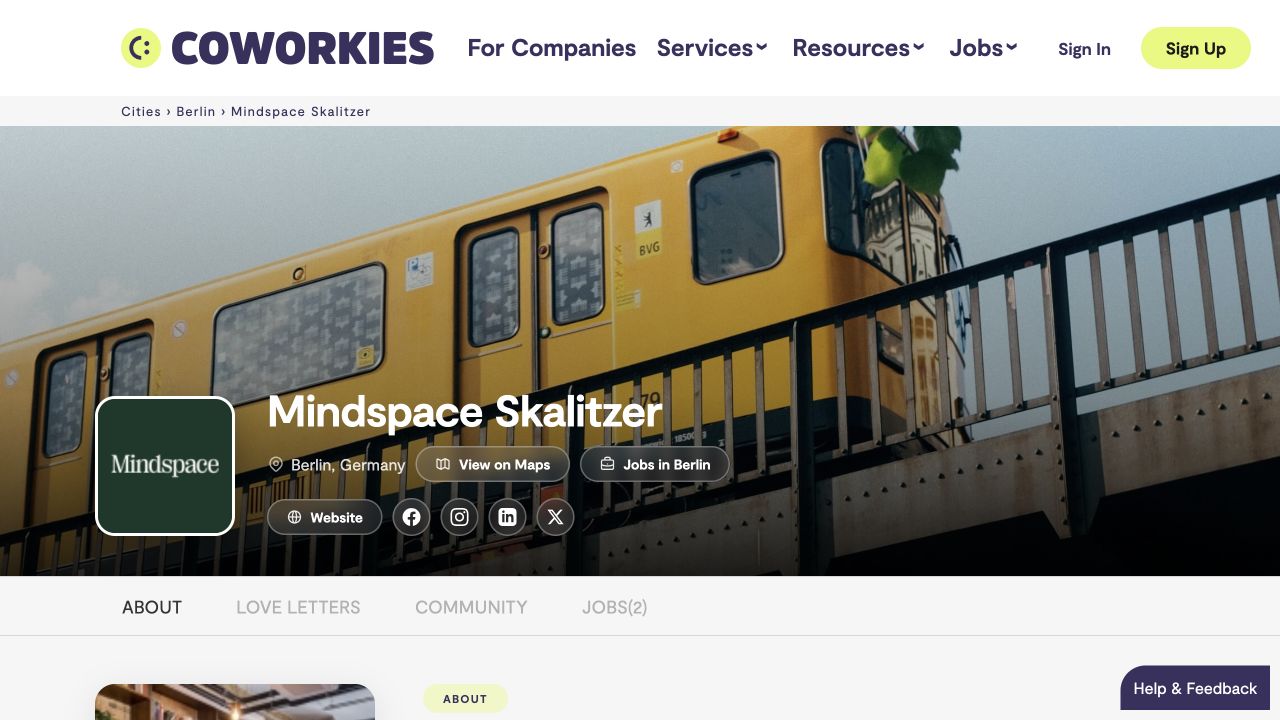
*Live public profile, captured 4 October 2026.*
A directory entry does not grant management access. If you operate a listed space, follow [Space Admin access](https://docs.coworkies.com/spaces/space-administration/). If it is missing, follow [Add a space](https://docs.coworkies.com/spaces/add-a-space/).
---
# Getting started as a coworker on Coworkies
Source: https://docs.coworkies.com/getting-started/coworker-journey/
> Complete onboarding guide for coworkers on Coworkies. Create your account, complete your profile, find coworking, hospitality and workspace jobs, connect with others, and explore the platform in 10 steps.
Get started on Coworkies in 10 steps: create an account, complete your profile, explore the platform, build your network, find jobs, post gigs, connect with your space community, use messaging, and stay active. The entire onboarding takes about 15 minutes.
## Welcome to Coworkies!
This guide walks you through the complete coworker journey on Coworkies -- from creating your account to building your professional network and finding opportunities.
## Step 1: Create Your Account
### Sign Up
1. Navigate to [Create Account](/coworkers/create-account)
2. Choose your signup method:
- Email and password
- Google OAuth (if available)
3. Verify your email address
4. Complete basic profile information
**What You'll Need**:
- Valid email address
- Choose your city
- Select your coworking space (or indicate you're looking)
**Resources**: See [Create Account](/coworkers/create-account) for detailed guide
## Step 2: Complete Your Profile
### Essential Information
Fill in your profile to make it discoverable:
- **Profile Photo** - Add a professional photo
- **Name** - Your full name
- **Occupation** - Your job title or profession
- **Short Description** - Brief bio about yourself
- **Skills** - Professional and casual skills
- **Social Links** - Links to your online profiles
**Why Complete Your Profile**:
- More discoverable in the People Directory
- Better networking opportunities
- Professional presence
- Attract potential connections
**Resources**: See [Account Settings](/coworkers/account-settings) for profile management
## Step 3: Explore the Platform
### Key Sections to Explore
**People Directory**:
- Browse other coworkers
- Find people in your space or city
- Discover professionals in your industry
**Job Board**:
- Browse coworking, hospitality and workspace job opportunities
- Search by location, type, or keywords
- Save interesting jobs
**Forum**:
- Read community discussions
- Ask questions
- Share insights
**Events**:
- Find coworking events
- Discover workshops and meetups
- Network with the community
**Resources**:
- [People Directory](/coworkers/directory)
- [Jobs Overview](/jobs/overview)
- [Forum](/about/forum)
- [Events](/about/events)
## Step 4: Build Your Network
### Following Other Coworkers
1. Browse the People Directory
2. Visit profiles that interest you
3. Click "Follow" to connect
4. Build your professional network
**Who to Follow**:
- People in your coworking space
- Professionals in your city
- People in your industry
- Interesting community members
**Resources**: See [Social Features](/coworkers/social-features) for networking guide
### Engage with Content
- Like and comment on feed posts
- Share your own updates
- Participate in forum discussions
- Attend events and meet people
## Step 5: Finding Jobs
### Browse Job Opportunities
1. Go to the Jobs section
2. Use filters to find relevant positions:
- Location (city)
- Job type (full-time, part-time, freelance, internship)
- Keywords
3. Click on jobs to see details
4. Save interesting jobs for later
### Applying for Jobs
- Follow application instructions in each job posting
- Some jobs link to external application forms
- Others provide contact information
- Save jobs you're interested in
**Resources**: See [Jobs Overview](/jobs/overview) for complete guide
## Step 6: Posting Gigs
### Share Your Services
If you offer freelance services or gigs:
1. Go to "Post a Gig" section
2. Describe your services
3. Add relevant details
4. Publish your gig
**Resources**: See [Post a Gig](/coworkers/post-a-gig) for guide
## Step 7: Engaging with Your Space
### Connect with Your Space Community
- Follow other members of your space
- Participate in space discussions
- Attend space events
- Build local connections
### Change Your Space
If you move to a different coworking space:
1. Go to Account Settings
2. Update your space selection
3. Your profile will reflect your new space
**Resources**: See [Change Coworking Space](/coworkers/change-coworking-space) for guide
## Step 8: Using Messaging
### P2P Messaging
Connect directly with other coworkers:
1. Visit someone's profile
2. Use the messaging feature
3. Start conversations
4. Build professional relationships
**Resources**: See [P2P Messaging](https://docs.coworkies.com/coworkers/p2p-messaging/) for guide
## Step 9: Staying Active
### Regular Activities
**Weekly**:
- Check for new job postings
- Browse the People Directory
- Engage with feed posts
- Participate in forum discussions
**Monthly**:
- Update your profile
- Review and refresh your skills
- Connect with new people
- Attend events
### Building Your Presence
- Post regular updates to your feed
- Share professional insights
- Engage with others' content
- Build meaningful connections
## Step 10: Advanced Features
### Social Features
- **Following/Followers** - Build your network
- **Feed Posts** - Share updates and insights
- **Social Links** - Showcase your online presence
### Profile Optimization
- Keep your profile updated
- Add new skills as you learn
- Update your occupation
- Refresh your description
**Resources**: See [Social Features](/coworkers/social-features) for complete guide
## Common First Steps Checklist
- [ ] Account created and verified
- [ ] Profile photo added
- [ ] Occupation and description filled
- [ ] Skills added
- [ ] Social links added
- [ ] Space selected
- [ ] First person followed
- [ ] First job saved
- [ ] Profile explored
## Next Steps
### Immediate Actions
1. **Complete Your Profile** - Add all information
2. **Follow 5 People** - Start building your network
3. **Browse Jobs** - Find opportunities
4. **Explore Features** - Learn the platform
### Short-Term Goals (First Month)
1. **Build Network** - Follow 20+ people
2. **Engage Regularly** - Post updates, comment on posts
3. **Find Opportunities** - Save and apply to relevant jobs
4. **Attend Events** - Meet people in person
### Long-Term Goals (First Quarter)
1. **Active Presence** - Regular feed posts and engagement
2. **Strong Network** - 50+ connections
3. **Community Participation** - Active in forum and events
4. **Professional Growth** - Use platform for career development
## Getting Help
### Documentation
- Browse our [documentation index](/)
- Search for specific topics
- Follow step-by-step guides
### Support
- Contact us via [Contact Form](/contact)
- Check [FAQ](/faq) for common questions
- Ask questions in the [Forum](/about/forum)
## Related Documentation
- [Create Account](/coworkers/create-account) - Account setup
- [Account Settings](/coworkers/account-settings) - Profile management
- [People Directory](/coworkers/directory) - Finding coworkers
- [Social Features](/coworkers/social-features) - Networking
- [Jobs Overview](/jobs/overview) - Finding opportunities
- [Post a Gig](/coworkers/post-a-gig) - Offering services
---
# Set up your coworking space: a practical checklist
Source: https://docs.coworkies.com/getting-started/space-owner-journey/
> Follow the steps from finding or adding your space to editing its profile, managing access and checking the public result.
Use this checklist to set up an accurate space listing and give the right people access.
## 1. Find or submit the space
Search the [directory](https://docs.coworkies.com/spaces/directory/) first. If the space exists, request management access. If it is missing, [submit it once](https://docs.coworkies.com/spaces/add-a-space/). A space entered during sign-up may already be awaiting validation.
## 2. Open Space Admin
Sign in and select the space from **Manage Spaces**. Check its name. If it is missing, ask an existing operator or [support](https://docs.coworkies.com/spaces/help/) to verify your role. A profile connection alone is not management access.
## 3. Make the profile useful
In **Details**, check the name, category, address, contact email and website/social links. Add a logo (at least 400 × 400 pixels) and cover (at least 1500 × 340 pixels).
In **About**, add a short introduction, the fuller story and useful photos. Select **Save**, wait for confirmation and use **Exit** to check the public page. Follow [Edit your space profile](https://docs.coworkies.com/spaces/profile/) for the full steps.
## 4. Set team and member roles
Ask colleagues to connect their accounts to the space, then promote only those who need management access to **Team Member / Staff**. Confirm community members as **Verified Member**. Save and recheck the lists.
Read [team access](https://docs.coworkies.com/spaces/space-team-management/) and [member verification](https://docs.coworkies.com/spaces/members/). Ask support to handle an ownership transfer.
## 5. Keep the listing current
Review contact links, images and roles when the team changes. Check **Activity Log** if you need to understand a recorded change. Browse **Marketplace** when looking for partner offers.
For hiring, use the [space job board guide](https://docs.coworkies.com/spaces/space-job-board/). For integrations on a Pro space, use [API Keys](https://docs.coworkies.com/spaces/api-keys/) and the [API quick start](https://docs.coworkies.com/api/).
## Completion checklist
- [ ] Correct listing found or submitted once.
- [ ] Listing confirmed and management access available.
- [ ] Details and About saved.
- [ ] Public page and external links checked.
- [ ] Team access reviewed and members verified where appropriate.
- [ ] Billing checked in the purchasing account if applicable.
---
# Find your subscription and invoices
Source: https://docs.coworkies.com/services/billing-and-invoicing/
> Open Billing in the purchasing account’s profile and find available subscription, invoice and payment controls.
Subscriptions and billing records belong to the account that made the purchase. Sign in to that account, then open [profile Billing](https://www.coworkies.com/profile/my#/profile/billing).
## Check billing
1. Confirm that you are using the purchasing account.
2. Review the available subscription and payment information in **Billing**.
3. Use the invoice/download or payment management controls shown for that purchase. Available controls depend on the billing record.
4. Check the current terms before changing or purchasing a plan.
Being a space operator does not give you another person's billing history. A space's Pro status also does not mean every location or colleague is covered. See [Pro access and coverage](https://docs.coworkies.com/spaces/plans/).
If an invoice or subscription is missing, contact [hi@coworkies.com](mailto:hi@coworkies.com) with your account email, purchase date and order reference if available. Do not send card details or API secrets.
---
# How do I manage my Coworkies account settings?
Source: https://docs.coworkies.com/coworkers/account-settings/
> Update profile info, preferences, and account details from the settings page.
Manage your profile information, preferences, and account details from your account settings page.

## Related docs
- [Create an Account](/coworkers/create-account/) - Set up your profile
- [Change Coworking Space](/coworkers/change-coworking-space/) - Switch or manage your workspace
---
# How do I promote a job on Coworkies?
Source: https://docs.coworkies.com/jobs/add-paid-job/
> Post a paid job ad on Coworkies to promote it on the main job page for 30 or 90 days. No account required. Accepts all major credit cards via Stripe.
Post a paid job ad on Coworkies to promote it on the main job page, visible to all visitors. No account is required -- you can post directly at [coworkies.com/jobs/work-post-offer-noreg](https://www.coworkies.com/jobs/work-post-offer-noreg). Payment is handled securely through Stripe. You receive an invoice by email after payment.
## Accessing the Form
Getting to the Job Ad Submission Form is straightforward:
### Posting a Job without an Account:
Navigate directly to: [https://www.coworkies.com/jobs/work-post-offer-noreg](https://www.coworkies.com/jobs/work-post-offer-noreg)
This link can also be found on our **Homepage** and **Job Listing** page via the "Post a Job" button.
### Posting a Job with an Account:
1. Sign in to your account on our website.
2. Find the 'Jobs' link in the website's top menu.
3. Click the "Post a Job" button.
Quick reference link: [https://www.coworkies.com/jobs/work-post-offer](https://www.coworkies.com/jobs/work-post-offer)
## Filling in the Form
Remember to complete all required fields. Providing detailed information about the job increases the chances of attracting the right candidate.
### Job Price Type
Select your job's pricing model. We offer two options:
1. **Paid:** This option is for companies that wish to promote their job opportunities to our dedicated professional network.
2. **Free:** This option is available to approved members associated with a company page. [Learn more](/jobs/add-free-job/)
### Job Title
Enter a title for the job you're advertising. A good job title is concise yet descriptive and directly relates to the position.
### Job Organization
Provide the name of your organization. You can exclude abbreviations like Ltd, GmbH, etc.
### Job Company Logo
Upload your company's logo. We accept JPG and PNG file formats.
### Job Company Photo
Upload a photo that represents your company. Ideal dimensions are 500px by 500px. We accept JPG and PNG file formats. A good photo of the work environment can really make your job ad stand out.
**If you manage a coworking space on our platform and have an account**, this field we will automatically populate it with your main space photo.
### Job Location
Choose the city where the job is located from the dynamic dropdown menu. This helps with job distribution and attracts relevant local candidates.
### Job Cowork Space
(Only applicable for logged-in users with approved company profiles.) Select the coworking space for the job from the dropdown menu.
### Job Remote
Indicate whether the job is remote-friendly. If yes, select the 'Remote' option.
### Job Post Address
Provide the physical address of the job location, including the city, state, and zip code. This is optional but can significantly aid job distribution and attract candidates from your local area.
### Job Type
Choose the employment type from the dropdown menu. Options include Full-Time, Part-Time, Freelance, and Internship.
### Job Salary Currency, Min, and Max for the Salary Range
Select the salary's currency and indicate the minimum and maximum range. Although optional, it's a significant detail. Read about ["why adding a job salary range is important for a coworking space when hiring."](/jobs/job-salaries-range/)
### Job Application URL or Email
Enter the URL where applicants can learn more about the job and apply for it, such as a page on your company's website or a LinkedIn job post link. Alternatively, you can provide an email address. If this field is left blank, specify how to contact you within the job description.
### Job Template
To quickly start, choose a template for your job post from the dropdown menu. Options may emphasize different job post aspects like responsibilities, qualifications, benefits, etc.
### Job Description
Provide a comprehensive description of the job, including responsibilities, qualifications, and required experience.
### Job Tags
Include tags related to the job. These help to make your job post more discoverable. Choose tags representing the skills, experience, and industry relevant to the job.
## Company Details
Please provide a company email where we can send the invoice and job ad editing options. On the Stripe payment page, you can add further company details like Name, Address, and Tax Number to ensure the accuracy of the invoice generated for your purchase.
## Error Messages
Upon submission, incorrectly filled or empty fields may display a '⚠️ Required!' error message. If this happens, refer to the respective field information in this guide to correct the issue.
## Submitting the Form
After filling all fields, click the 'Submit' button to preview your job postm and use the "Edit" button to update it. You can then proceed to secure payment powered by Stripe. Following a successful payment, you'll receive a confirmation email. This email includes links to edit the job ad, download an invoice, or delist the job if the position is no longer open.
## Support
If you need further assistance, contact our support team via the [Contact Form](/contact).
---
# How to Explore People & Spaces?
Source: https://docs.coworkies.com/about/how/
> Approved members can explore people and spaces on Coworkies. Use the Members tab to search by profession/skills/name, or browse Cities to discover spaces and their professionals.
As an approved Coworkies member you can explore people (by profession, skills, or name via the Members tab) and spaces (via the Cities tab to browse by city and see professionals per space). This helps you find collaborators or an ideal workspace.
On Coworkies, as approved Member you can explore relevant People and Spaces, unlocking opportunities to discover potential team member or an ideal workspace.
### People
Our job board connects employers and candidates in coworking, hospitality and workspaces. The people directory helps members find collaborators and build their network.

There are two ways to search for people on Coworkies. The first approach is via the 'Members' tab on the main drop-down menu. Here, you can use the search box to find individuals based on their profession, skills, or name.
The second, and in our view, the better approach is to browse various coworking spaces from the 'Cities' tab on the main drop-down menu. By doing this, you gain insights into the unique community of a particular city or space and identify professionals available for collaboration or work.
### Spaces

As previously stated, as Coworkies approved member you can navigate through spaces and explore the professionals working there, view images and gather information, and even keep tabs on upcoming events (note: this feature is still in development). If you're traveling abroad and seeking a space with a like-minded community, just select the dropdown menu, search for, and select the city. You'll then see the available coworking spaces and their members in that city.
## Related docs
- [People Directory](/coworkers/directory/)
- [Spaces Directory](/spaces/directory/)
- [Social Features](/coworkers/social-features/)
---
# What education services does Coworkies offer?
Source: https://docs.coworkies.com/services/education/
> Training and workshops for coworking teams: role-specific skills, industry best practices, and practical knowledge.
Coworkies offers training and workshops for coworking teams. We cover role-specific skills, industry best practices, and practical knowledge—for newcomers and established operators alike.
## Team Education Service
Our Team Education service focuses on empowering both individuals and companies to excel in the coworking space sector. We offer comprehensive training and workshops that delve into the specifics of various roles within coworking spaces, providing valuable insights into how these jobs can be performed more effectively. Our education service extends beyond theoretical knowledge, blending practical skills and industry best practices to prepare teams for the real-world challenges they'll face. Whether you're a newcomer to the industry or an established entity looking to refine your operations, our Team Education service is designed to enhance your understanding and optimize your performance within the coworking environment.
## Ways to reach out
Learn more about our jobs services by reaching out:
1. Via our [Contact Form](/contact)
2. Directly on Linkedin here: [Pauline Roussel](https://www.linkedin.com/in/paulineroussel/)
## Related docs
- [Pro Spaces](/services/pro-spaces/) – Pro program for spaces
- [Services Overview](/services/) – All Coworkies services
---
# Jobs
Source: https://docs.coworkies.com/jobs/
> Find and post coworking, hospitality and workspace jobs on Coworkies. Coworking spaces also have a dedicated job board, with free posting and optional promotion.
Coworkies connects employers and candidates through jobs in coworking, hospitality and workspaces. Any signed-in user can post for free, with or without a space, or choose paid promotion. Coworking spaces also have a dedicated board for jobs associated with them. Each space has its own board where jobs link to the space, its story, and community.
## Related docs
- [Jobs Overview](/jobs/overview/) – How the job board works
- [Add Free Job](/jobs/add-free-job/) – Post free job ads
- [Find Jobs](/jobs/find-coworking-jobs/) – For job seekers
---
# Directory and content API reference
Source: https://docs.coworkies.com/api/reference/
> Look up cities and spaces, distinguish city-space metadata from space profiles, and find blog, event, health and feedback endpoints.
All paths below are relative to `https://api.coworkies.com`.
## Cities and spaces
| Endpoint | Permission | Parameters and result |
|---|---|---|
| `GET /v2/cities` | `cities:read` or broad read access | `q`: exact city slug; `search`: partial city name. Returns a `data` array with city identifiers. |
| `GET /v2/spaces` | `spaces:read` or broad read access | `q`: city slug. Returns confirmed spaces; a space key filters to its own space. |
| `GET /v2/city_spaces` | `spaces:read` or broad read access | Returns confirmed space/city metadata, website and LinkedIn URL when available. |
### Resolve a city
```bash
curl --fail-with-body --max-time 30 'https://api.coworkies.com/v2/cities?search=berlin' -H "X-API-Key: ${COWORKIES_API_KEY}"
```
City fields include `id_city`, `city_name`, `city_slug`, `latitude` and `longitude`. Choose the intended city before using `id_city` in [job creation](https://docs.coworkies.com/api/jobs/).
### Read the space profile data
```bash
curl --fail-with-body --max-time 30 'https://api.coworkies.com/v2/spaces?q=berlin' -H "X-API-Key: ${COWORKIES_API_KEY}"
```
Fields include `space_name`, `space_url` (space slug), `space_address`, `latitude`, `longitude` and `city_name`. `space_url` is not a complete URL. This endpoint does not return the admin membership table or a complete photo gallery.
`city_spaces` additionally includes space and city IDs, website and LinkedIn information. Its coordinates describe the **city**, while `spaces` coordinates describe the **space**. The current city-space directory response is not restricted to the key's own space. Do not assume all endpoints share the same scope filtering.
## Other endpoints
| Endpoint | Authentication | Use |
|---|---|---|
| `GET /v2` | Public | API information and available routes. |
| `GET /v2/blog` | Public | Blog posts: `category`, `tag`, `limit` (default 10, max 50), `offset`; `slug` fetches one post. |
| `GET /v2/events` | Required; event read access | Events. Use the full specification for filters and related endpoints. |
| `GET /v2/health` | Required; broad `read` | Service health response. |
| `POST /v2/feedback` | Public | Submit a required `message`, with optional `email`, `url` and `category`; JSON or form-encoded body. |
| `POST /v2/newsletters/subscribe` | Public | Newsletter subscription; see the full specification for consent and payload requirements. |
| `GET /v2/careers/{slug}` | Public | White-label career board JSON feed for a space (`/v2/careers/brand/{slug}` for a brand, or `/v2/careers?host={hostname}` for custom domains). See [Career portal & custom domain (Beta)](https://docs.coworkies.com/spaces/career-portal/). |
| `GET /v2/vine/jobs`, `/v2/vine/events`, `/v2/vine/blog` | Public | Lightweight feed responses; see the full reference for limits. |
For schemas and further event routes, use the [OpenAPI specification](https://api.coworkies.com/openapi.yaml) and [API reference](https://api.coworkies.com/docs/). Consult [authentication and errors](https://docs.coworkies.com/api/authentication/) before handling failed requests.
---
# Compare standard space access and Pro integrations
Source: https://docs.coworkies.com/services/pro-plans-comparison/
> Understand core space management, Pro API access and account-owned billing without assuming access for every location.
| Capability | Standard space | Pro space |
|---|---|---|
| Public space profile | Yes, once confirmed | Yes, once confirmed |
| Edit Details and About | With owner/staff access | With owner/staff access |
| Manage team/member relationships | With owner/staff access | With owner/staff access |
| Marketplace and Activity Log | With management access | With management access |
| API Keys section | Not available | Available with management access |
| Automatic publication of new API jobs | Space-key jobs normally begin as drafts | Available for confirmed Pro spaces |
Management permissions and paid subscriptions are separate. Pro access does not give an unrelated account permission to manage a space. Coverage can differ between locations.
Read [Pro access and billing](https://docs.coworkies.com/spaces/plans/) for the details. Check current offers and checkout terms on the platform before purchasing. View subscriptions in [profile Billing](https://www.coworkies.com/profile/my#/profile/billing), using the purchasing account.
---
# How much does it cost to post a job on Coworkies?
Source: https://docs.coworkies.com/jobs/pricing/
> Signed-in users can post free jobs without space admin access. Compare free posting, paid promotion and included Pro posts using the current price and duration shown in the form.
**Any signed-in Coworkies user can choose the Free option.** Space admin access and space membership are not required. Linking the job to a coworking space is optional.
Check the current price, duration and included services in the job form before confirming. Free jobs have an expiry date too.
## Posting options
| Option | Cost | What it includes | Duration |
|--------|------|------------------|----------|
| **Free job post** | No posting charge | A published job; active, unexpired jobs can appear in public listings and on an associated space board | Shown beside Free in the form |
| **Paid promotion** | Current price shown in the form | The promotion services listed for the selected option | Shown for the selected plan |
| **Included Pro post** | No extra charge while your account has an included post available | A promoted post from your Pro allowance | Shown in the form |
Free posting and a promoted post included in a Pro subscription are different options. If your Pro allowance is used up, the form shows the price for an additional promoted post.
## Before you publish
1. Select the option that fits your needs.
2. Enter the job details and review the preview.
3. For a free or included post, confirm with **Submit**. For a paid post, complete the payment step.
4. Check the status and expiry date in **My Jobs**.
A space association adds the job to that space's board when it is public. It is not a requirement for posting a job.
## Discounts
Use an available promotion code at checkout, or [contact us](/contact/) about partner and bulk hiring options.
## Related docs
- [Add a Free Job](/jobs/add-free-job/) -- Publish without a posting charge
- [Add a Paid Job](/jobs/add-paid-job/) -- Post a promoted job
- [Job Discounts](/jobs/job-discounts/) -- Bulk order discounts
- [Billing & Invoicing](/services/billing-and-invoicing/) -- Payment and invoices
---
# Add a coworking space
Source: https://docs.coworkies.com/spaces/add-a-space/
> Submit a space, avoid duplicate listings and understand the difference between listing approval and management access.
Adding a space is free. Search the [directory](https://docs.coworkies.com/spaces/directory/) first so you do not create a duplicate.
## If you added it during sign-up
When you enter a new space during account setup, it can be pending validation. Do not submit the same space again through the separate form. If you cannot find it or need management access, contact the Coworkies team with its name and city.
## Use the space submission form
1. Sign in and open [Add a coworking space](https://www.coworkies.com/add-coworking-space).
2. Choose **City Name**. Search an existing city or type a new one if it is missing.
3. Enter **Space Name** and the full **Space Address**.
4. Choose how you know the space: **I work for the space**, **I am a member**, or **I like it and think it should be on Coworkies**.
5. If you work for it, enter its official email address when requested.
6. If a brand option appears, check whether the listing belongs to that brand.
7. Select **Submit** and read the result before trying again.
## What happens next
Public visibility depends on confirmation of the listing. Management access is checked separately: an existing listing may need an ownership check before you can edit it. Submitting an official email alone does not guarantee management rights. Review time varies; contact support if you need an update.
If access is granted, open the space from **Manage Spaces**. Complete [Details and About](https://docs.coworkies.com/spaces/profile/) and check the public page after saving.
## If something goes wrong
- **Space already exists:** request access to that listing instead of submitting another one.
- **Form is missing:** sign in first.
- **Space is pending:** wait for confirmation or [contact support](https://docs.coworkies.com/spaces/help/) with its name, city and your account email.
- **No edit access after submission:** ask support to verify your connection to the space.
---
# How do I change my coworking space on Coworkies?
Source: https://docs.coworkies.com/coworkers/change-coworking-space/
> Switch or manage your coworking space from My Settings → Workspace.
Go to **My Settings → Workspace** to select a new space, remove previous ones, or switch between multiple memberships.
To change your coworking space, navigate to:
`My Settings -> Workspace`
In this section, you can select a new coworking space or remove previous ones as per your preference. If you are part of multiple coworking spaces, this section of the settings allows for easy switching between them.

## Related docs
- [Account Settings](/coworkers/account-settings/) - Manage your profile and preferences
- [Adding a Space](/spaces/add-a-space/) - Add a new space to the directory
---
# How do I get discounts on Coworkies job ads?
Source: https://docs.coworkies.com/jobs/job-discounts/
> Coworkies offers discounts for bulk job ads. Contact us to discuss pricing for multiple openings.
Coworkies offers discounts for bulk job ad orders. Contact us to discuss pricing and cost-effective solutions for companies posting multiple openings.
## Job Discounts
At Coworkies, we value long-term partnerships and want to support organizations that regularly use our job board. Therefore, we offer special discounts for bulk job ad orders. These incentives are designed to make it cost-effective for companies with multiple job openings to reach our dedicated pool of professionals. If you're planning on submitting numerous job ads or anticipate doing so in the future, get in touch with us to discuss how our Job Discounts can provide an affordable and beneficial solution for your hiring needs.
## Ways to reach out
1. Via our [Contact Form](/contact)
2. Directly on Linkedin here: [Pauline Roussel](https://www.linkedin.com/in/paulineroussel/)
---
# Spaces: find, list and manage your space
Source: https://docs.coworkies.com/spaces/
> Browse coworking spaces, add a listing, get management access and maintain your profile, team and community.
Find a coworking space in the directory, or keep your own space's page useful for visitors and members. You use a personal Coworkies account to manage a space.
## Choose your next step
| I want to… | Start here |
|---|---|
| Find a coworking space | [Browse the directory](https://docs.coworkies.com/spaces/directory/) |
| List a new space | [Add a space](https://docs.coworkies.com/spaces/add-a-space/) |
| Manage an existing listing | [Open Space Admin](https://docs.coworkies.com/spaces/space-administration/) |
| Update information or photos | [Edit your space profile](https://docs.coworkies.com/spaces/profile/) |
| Give a colleague management access | [Manage the team](https://docs.coworkies.com/spaces/space-team-management/) |
| Confirm community members | [Manage members](https://docs.coworkies.com/spaces/members/) |
| Check a recorded change | [Activity Log](https://docs.coworkies.com/spaces/activity-log/) |
| Connect an integration | [API Keys](https://docs.coworkies.com/spaces/api-keys/) |
| Set up a custom career domain, embed or brand colors | [Career portal & custom domain (Beta)](https://docs.coworkies.com/spaces/career-portal/) |
## Listing, membership and management access
A public listing, a connection to a space on your profile, and permission to manage it are different things. Joining or selecting a space does not automatically grant access to Space Admin. Management access requires an **Admin/owner** or **Team Member/staff** relationship for that space.
## A useful first setup
1. Check whether your space is already listed before submitting it.
2. Get management access and open the correct space.
3. Complete **Details** and **About**, then select **Save**.
4. Review **Team** and **Members**.
5. Use **Exit** to check the public page.
Read the [space owner setup guide](https://docs.coworkies.com/getting-started/space-owner-journey/) for the complete checklist.
---
# Forum - How to use it and make posts
Source: https://docs.coworkies.com/about/forum/
> Community forum to ask questions, share ideas, and connect. Create threads with Markdown. Categories: General, Suggestions, Questions.
The Coworkies Forum is a community discussion platform where coworkers ask questions, share ideas, make suggestions, and engage with the coworking community. Create threads with Markdown formatting. Categories: General, Suggestions, Questions.
## Forum Overview
The Coworkies Forum is a community discussion platform where coworkers can ask questions, share ideas, make suggestions, and engage with the coworking community. The forum supports rich text formatting through Markdown and organizes discussions into categories.

## Accessing the Forum
To access the forum:
1. Navigate to the main menu
2. Click "Forum"
3. Browse or search for discussions
## Forum Categories
The forum is organized into three main categories:
### General
- **Purpose** - General discussions about coworking, work, and community
- **Use For** - Broad topics, casual conversations, general questions
- **Examples** - "Best practices for remote work", "Coworking trends"
### Suggestions
- **Purpose** - Ideas and suggestions for improving Coworkies or coworking
- **Use For** - Feature requests, platform improvements, community ideas
- **Examples** - "New feature suggestion", "Platform improvement idea"
### Questions
- **Purpose** - Specific questions that need answers
- **Use For** - How-to questions, troubleshooting, seeking advice
- **Examples** - "How do I...?", "What is the best way to...?"
## Creating a Thread
### Starting a New Discussion
1. Navigate to the Forum
2. Click "New Thread" or "Create Thread"
3. Select a category (General, Suggestion, or Question)
4. Enter a thread title
5. Write your post content
6. Publish your thread
### Thread Title Best Practices
- **Be Clear** - Use descriptive titles that explain the topic
- **Be Specific** - Avoid vague titles like "Help" or "Question"
- **Include Context** - Add relevant details in the title
- **Examples**:
- Good: "How to optimize job postings for better visibility?"
- Bad: "Help with jobs"
### Thread Content
When writing your thread:
- **Provide Context** - Explain the situation or question clearly
- **Be Respectful** - Maintain a professional and friendly tone
- **Use Formatting** - Use Markdown to make your post readable
- **Add Details** - Include relevant information to help others understand
## Replying to Threads
### Adding a Reply
1. Open the thread you want to reply to
2. Scroll to the reply section
3. Write your response
4. Use Markdown formatting if needed
5. Submit your reply
### Reply Best Practices
- **Be Helpful** - Provide useful information or constructive feedback
- **Stay On Topic** - Keep replies relevant to the thread
- **Be Respectful** - Maintain a positive and professional tone
- **Add Value** - Contribute meaningful insights or answers
### Nested Replies
Some threads support nested replies (replies to replies):
- Click "Reply" on a specific post
- Your reply will be nested under that post
- This helps organize longer discussions
## Markdown Formatting
Forum posts support Markdown for rich text formatting. Here's how to use it:
### Links
Links are automatically converted when you paste them, or you can use Markdown syntax:
**Automatic**: Just paste the URL: `https://www.coworkies.com`
**Markdown**: `[Link text](https://www.coworkies.com)`
### Images
To add an image, use the following syntax:
```

```
**Example**: ``
> **Important**: Don't forget the **!** in front of the first bracket!
### Text Formatting
#### Headers
Use # for headers (more # = smaller header):
```
# H1 - Main Header
## H2 - Subheader
### H3 - Smaller Subheader
#### H4
##### H5
###### H6
```
#### Emphasis
**Bold text**:
- Write: `**bold text**` or `__bold text__`
- Result: **bold text**
*Italic text*:
- Write: `*italic text*` or `_italic text_`
- Result: *italic text*
**Bold and italic**:
- Write: `***bold and italic***`
- Result: ***bold and italic***
#### Strikethrough
- Write: `~~strikethrough text~~`
- Result: ~~strikethrough text~~
#### Lists
**Unordered lists**:
```
- Item 1
- Item 2
- Item 3
```
**Ordered lists**:
```
1. First item
2. Second item
3. Third item
```
#### Code
**Inline code**: `` `code` ``
**Code blocks**:
```
```
Your code here
```
```
## Thread Features
### Pinned Threads
Important threads may be pinned to the top:
- Pinned threads appear first in the list
- They're marked with a pin icon
- Used for announcements or important discussions
### Thread Statistics
Each thread shows:
- **Replies Count** - Number of replies
- **Latest Repliers** - Profile photos of recent participants
- **Author** - Who created the thread
- **Date** - When the thread was created
### Thread Navigation
- **Browse All** - View all threads
- **Filter by Category** - View threads in specific categories
- **Search** - Search for specific topics
- **Pagination** - Navigate through multiple pages of threads
## Community Guidelines
### Be Respectful
- Treat others with kindness and respect
- Avoid personal attacks or harassment
- Maintain a professional tone
- Disagree constructively
### Stay On Topic
- Keep discussions relevant to the thread
- Create new threads for new topics
- Don't hijack threads with unrelated content
### Provide Value
- Share useful information
- Answer questions when you can
- Contribute meaningful insights
- Help build a helpful community
### No Spam
- Don't post promotional content without context
- Avoid repetitive posts
- Don't post the same content multiple times
- Respect the community's time
## Best Practices
### Creating Effective Threads
1. **Choose the Right Category** - Post in the most relevant category
2. **Clear Titles** - Use descriptive, specific titles
3. **Provide Context** - Give enough information for others to help
4. **Use Formatting** - Make your post readable with Markdown
5. **Be Patient** - Wait for responses before bumping threads
### Engaging in Discussions
1. **Read First** - Read existing replies before posting
2. **Add Value** - Contribute something meaningful
3. **Be Helpful** - Answer questions when you can
4. **Stay Active** - Engage with the community regularly
5. **Follow Up** - Respond to replies on your threads
## Troubleshooting
### Cannot Create Thread
If you can't create a thread:
- Verify you're logged in
- Check that your account is validated
- Try refreshing the page
- Contact support if issues persist
### Formatting Not Working
If Markdown isn't working:
- Check your syntax carefully
- Verify you're using correct Markdown syntax
- Try previewing your post first
- Review the formatting guide above
### Thread Not Appearing
If your thread doesn't appear:
- Check that it was published successfully
- Verify you're viewing the correct category
- Refresh the page
- Check if it needs moderation approval
## Related docs
- [Social Features](/coworkers/social-features/)
- [Events](/about/events/)
---
# Should I add a salary range to my job post?
Source: https://docs.coworkies.com/jobs/job-salaries-range/
> Yes—adding salary ranges attracts motivated candidates, streamlines hiring, and improves retention. Required in some regions (UK, EU).
Yes. Including salary ranges attracts relevant candidates, streamlines the hiring process, and improves retention. Some regions (e.g. UK, EU) require it. Transparency also strengthens your employer brand.
**About Salary Ranges:**
In the highly competitive job market, attracting the right talent is crucial for businesses to thrive. One effective way to engage potential candidates and streamline the hiring process is by including salary ranges in job advertisements. In this article, we will explore why job advertisers in the UK, Europe, and the USA should consider adding salary information to their job ads, focusing on the benefits it brings to employers. We will also discuss the mandatory inclusion of salary ranges in certain territories.

**Mandatory Salary Range in Job Ads:**
While there is no universal mandate to include salary ranges in job advertisements, some territories have adopted regulations that require employers to disclose salary information. For example, in the UK, as of 2021, companies with 250 or more employees must include salary details in job advertisements. This requirement aims to enhance transparency and fairness in the job market. Similarly, in certain European countries like Germany, it is common practice to include salary expectations or a salary range in job ads to ensure transparency. Adhering to these regulations not only helps companies comply with legal requirements but also demonstrates a commitment to ethical recruitment practices.
**Benefits for Job Advertisers:**
1. **Enhance Employer Branding:**
Including salary ranges in job advertisements showcases transparency and fairness, enhancing the employer's reputation and brand image. Candidates appreciate companies that are open about compensation, as it demonstrates respect for their time and expectations. By being upfront about salary, employers foster trust and build a positive reputation in the job market. This, in turn, attracts a pool of qualified candidates who are more likely to have a positive perception of the organization.
2. **Attract Relevant and Motivated Candidates:**
Including salary ranges in job advertisements allows employers to attract candidates who are genuinely interested in the position and meet the salary expectations. This level of transparency helps filter out applicants who may be overqualified or seeking higher compensation. By showcasing the salary range upfront, job advertisers ensure that candidates are motivated and qualified for the role, increasing the likelihood of finding the right fit for the job.
3. **Efficient Recruitment Process:**
Providing salary information in job ads saves time and effort for both job advertisers and applicants. Candidates can quickly assess whether the salary aligns with their expectations and make an informed decision about whether to apply. This reduces the number of irrelevant applications, allowing employers to focus on qualified candidates and streamline the hiring process. By attracting candidates who are already comfortable with the salary range, employers can conduct more efficient interviews and reduce time spent on negotiation.
4. **Improve Retention and Employee Satisfaction:**
Providing salary information from the start establishes clear expectations for both employers and employees. When candidates have a clear understanding of the compensation package, they are more likely to accept an offer that aligns with their expectations. This reduces the chances of early turnover due to dissatisfaction with salary. By attracting candidates who are content with the salary range, employers can improve employee satisfaction, retention rates, and overall workplace morale.
**Main Takeaways:**
Including salary ranges in job advertisements benefits job advertisers in the UK, Europe, and the USA in several ways. It helps attract relevant and motivated candidates, streamlines the recruitment process, enhances employer branding, and improves retention rates. While there is no universal mandate to include salary ranges, adhering to the regulations in certain territories promotes transparency and fairness. By being transparent about salary from the outset, job advertisers can engage the right talent, save time, and foster a positive employer image. Incorporating salary ranges in job ads is a strategic move that ultimately contributes to the success and growth of businesses in the competitive job market.
To add a job on Coworkies, [click here](https://www.coworkies.com/work-post-offer-noreg).
## Related docs
- [Add Paid Job](/jobs/add-paid-job/) – Create promoted job ads
- [Jobs Overview](/jobs/overview/) – How the job board works
---
# Edit your space profile and photos
Source: https://docs.coworkies.com/spaces/profile/
> Update Details and About, use the required image sizes and check saved changes on your public space page.
Open [Space Admin](https://docs.coworkies.com/spaces/space-administration/) for the space you want to edit.
## Update Details
1. Select **Details**.
2. Update the space name, category and address.
3. Upload a logo of at least **400 × 400 pixels** and a cover of at least **1500 × 340 pixels**, as requested by the form.
4. Enter the contact email, website and relevant social links. Use full URLs such as `https://example.com`.
5. Select **Save** and wait for the result.
The **Username** (page slug), **City** and **Country** fields are read-only. Contact support for corrections to these fields rather than adding a duplicate listing.
## Update About
1. Select **About**.
2. Write a short introduction; the form displays a 150-character counter.
3. Add your fuller story: explain who the space is for, its community and what visitors can expect.
4. Add or replace the team photo if useful.
5. Use **Add photo** for gallery images. Add a description when needed, then select **Save**.
Use **Remove** on a gallery image only when you intend to remove that photo. Check the result after saving; a thumbnail preview alone does not prove an upload was stored.
## Verify the public result
Use **Exit**, open **About**, and check the name, links, logo, story and gallery. Images should be clear and relevant, and links should lead to the correct destination.
If saving fails, read the message, check required fields, and keep a copy of your text before reloading. For a persistent problem, tell [support](https://docs.coworkies.com/spaces/help/) which field or image failed.
---
# How do I find jobs on Coworkies?
Source: https://docs.coworkies.com/jobs/find-coworking-jobs/
> Find coworking, hospitality and workspace jobs on Coworkies: community manager, marketing, event manager, operations, and more. Browse by city, job type, or keyword. No account required to browse.
Browse coworking, hospitality and workspace jobs at [coworkies.com/jobs](https://www.coworkies.com/jobs). You can find positions like community manager, marketing, event manager, operations, and more. Filter by city, job type, and keyword. No account is required to browse jobs or apply.
## How to search for jobs
1. Go to [coworkies.com/jobs](https://www.coworkies.com/jobs)
2. Browse promoted jobs on the main page
3. Use filters to narrow your search:
- **City** -- Filter by location
- **Job type** -- Full-time, part-time, freelance, internship
- **Keyword** -- Search by title or description
4. Click on a job to view full details and application instructions
## Common roles across these industries
| Role | Description |
|------|-------------|
| **Community Manager** | Build and manage a space community, organize events |
| **Marketing** | Digital marketing, social media, content creation |
| **Event Manager** | Plan and execute events, workshops, networking sessions |
| **Operations** | Day-to-day space operations, facilities management |
| **Sales** | Membership sales, partnerships, business development |
| **Receptionist/Host** | Front desk, welcome members and guests, hospitality |
## Finding jobs through coworking spaces
Each coworking space on Coworkies has its own job board. To find jobs at a specific space:
1. Browse spaces at [coworkies.com/cities](https://www.coworkies.com/cities)
2. Select a city and then a space
3. View the space's job board on its profile page
## Tips for job seekers
- **Create a profile** -- Make yourself discoverable to spaces and employers
- **Follow spaces** -- Stay updated on new job posts from spaces you're interested in
- **Post a gig** -- Offer your freelance services to the coworking community
- **Check regularly** -- New jobs are posted frequently
## Related docs
- [Jobs Overview](/jobs/overview/) -- How the job board works
- [Create an Account](/coworkers/create-account/) -- Set up your profile
- [Post a Gig](/coworkers/post-a-gig/) -- Offer your services
- [People Directory](/coworkers/directory/) -- Connect with coworkers
---
# How does P2P messaging work on Coworkies?
Source: https://docs.coworkies.com/coworkers/p2p-messaging/
> Exchange messages with coworkers who follow you. Access Messages from the profile menu.
P2P messaging lets you send and receive direct messages only with users who follow each other. Open Messages from the profile dropdown to start a conversation.
### Who Can Message Me on Coworkies
Messages on Coworkies can only be exchanged between users who follow each other.
To message one of your connections, navigate to `Messages` from the profile dropdown menu and select the person you want to send a message to.

## Related docs
- [Social Features](/coworkers/social-features/) - Following and connections
- [People Directory](/coworkers/directory/) - Find coworkers to connect with
---
# Manage your job postings
Source: https://docs.coworkies.com/jobs/job-board-management/
> Open My Jobs to review, edit and unpublish your account’s job listings and check their public status.
Sign in and open [My Jobs](https://www.coworkies.com/jobs/my-jobs). This page manages job posts associated with your account.
## Review a job
Find the job card and check its state and expiry. Open the available edit action to correct its title, company, description or application details. Save changes and check the public listing when it is active.
Drafts need the remaining steps in the posting flow before they are public. Expired jobs need the available renewal/relisting flow. Follow the current payment or plan information shown by the site.
## Remove an active listing
Use the job's **Unpublish** action when you have finished hiring. Read the confirmation and verify that it is no longer active. Unpublishing does not mean the underlying record has been deleted.
Jobs attached to a coworking space can also appear on its public Jobs tab. If a listing is absent, check the space association, status and expiry. See [Space job board](https://docs.coworkies.com/spaces/space-job-board/).
For automated posting and removal, follow [Jobs API](https://docs.coworkies.com/api/jobs/). For an access issue, contact [support](https://docs.coworkies.com/spaces/help/) with the job URL and the account used to post it.
---
# Pro access for coworking spaces
Source: https://docs.coworkies.com/services/pro-spaces/
> Learn where Pro API keys appear and how to check the account and space coverage for a subscription.
Pro access can enable API integrations for a space. It does not replace management permissions: you still need an owner/staff relationship to open Space Admin.
Start with [Pro access and billing](https://docs.coworkies.com/spaces/plans/) to understand account ownership and coverage. If API Keys is available, follow [Create a space API key](https://docs.coworkies.com/spaces/api-keys/) and the [API quick start](https://docs.coworkies.com/api/).
Check current plan terms on the platform. If an existing subscription does not match the access you expect for a space, contact [support](https://docs.coworkies.com/spaces/help/) with its name and the purchasing account email.
---
# Coworkers
Source: https://docs.coworkies.com/coworkers/
> Profiles, account settings, people directory, social features, and gigs for coworkers.
The Coworkers section covers creating and managing your Coworkies profile, browsing the people directory, using social features (following, feed, P2P messaging), posting gigs, and changing your coworking space.
#### Account Overview
The Coworkies platform is designed to serve coworkers. People working out of coworking spaces can create a professional profile to promote their work, seek other professionals, or find jobs/gigs.
Profiles on Coworkies are simple yet informative. Users can add their hobbies and professional skills, along with the primary social networks where their work can be viewed.

## Related docs
- [Create an Account](/coworkers/create-account/) - Set up your profile
- [People Directory](/coworkers/directory/) - Browse and connect with coworkers
- [Getting Started](/getting-started/coworker-journey/) - Coworker journey guide
---
# Coworkies API: start here
Source: https://docs.coworkies.com/api/
> Connect your tools to API v2 with a scoped key, make your first read request and find job and directory integration guides.
Use the Coworkies API to read job listings and directory data or create jobs from your own tools. The base URL is **`https://api.coworkies.com/v2`**. Responses are JSON.
## 1. Get the right API key
For a Pro space, open **Space Admin → API Keys**. Follow [Create and manage space API keys](https://docs.coworkies.com/spaces/api-keys/). For other access needs, request access at [api@coworkies.com](mailto:api@coworkies.com).
Choose the smallest permissions your integration needs. A space key limits supported space-specific data and job operations to that space. It is not a way to gain access to other spaces. City lookups and public content are not all filtered by space; read each endpoint's behavior.
## 2. Make a read request
Set `COWORKIES_API_KEY` in your server's environment or secret store, then run:
```bash
curl --fail-with-body --max-time 30 'https://api.coworkies.com/v2/jobs' -H "X-API-Key: ${COWORKIES_API_KEY}"
```
Check the HTTP status and `success` field. Job results are in `data.jobs`. An empty list can mean your space has no active jobs.
```json
{
"success": true,
"status": 200,
"data": { "jobs": [], "total": 0 }
}
```
When pagination is enabled by the server, job results include `data.pagination` instead of just a total. See [Jobs API](https://docs.coworkies.com/api/jobs/).
## 3. Choose your integration guide
- [Authentication, responses and errors](https://docs.coworkies.com/api/authentication/): headers, permissions, retries and troubleshooting.
- [Jobs API](https://docs.coworkies.com/api/jobs/): filters, creation, publication status, deduplication and unpublishing.
- [Directory and content endpoints](https://docs.coworkies.com/api/reference/): cities, spaces, blog, events, health and feedback.
## Full developer resources
| Resource | Use |
|---|---|
| [API reference](https://api.coworkies.com/docs/) | Full endpoint examples and request/response fields. |
| [Swagger UI](https://api.coworkies.com/docs/swagger.html) | Interactive reference; write requests can change real data. |
| [OpenAPI specification](https://api.coworkies.com/openapi.yaml) | Import into API tools or generate a client. |
| [Concise LLM reference](https://api.coworkies.com/llms.txt) | Short integration context. |
| [Full LLM reference](https://api.coworkies.com/llms-full.txt) | Detailed integration reference. |
Most data endpoints require a key. Public routes include API information, feedback, newsletter subscription, blog content and Vine feeds. **Health**, **Jobs**, **Cities**, **Spaces** and **Events** require authentication. Keep keys in server-side integrations; do not include them in public frontend code.
---
# Events
Source: https://docs.coworkies.com/about/events/
> Discover coworking events, workshops, conferences, and networking. Filter by date and city. In-person, virtual, or hybrid.
The Coworkies Events section lets you discover and explore coworking-related events, workshops, conferences, and networking opportunities. Filter by date and city to find in-person, virtual, or hybrid events near you or online.
## Events Overview
The Events section on Coworkies helps you discover and explore coworking-related events, workshops, conferences, and networking opportunities happening in your city or online.
## Accessing Events
To view events:
1. Navigate to the main menu
2. Click "Events"
3. Browse the events calendar

## Finding Events
### Event List View
The events page displays:
- **Event Name** - Title of the event
- **Date & Time** - When the event takes place
- **Location** - Space name and city (or "Virtual")
- **Space Link** - Link to the hosting space's profile
### Event Types
Events can be:
- **In-Person** - Physical events at coworking spaces
- **Virtual** - Online events accessible from anywhere
- **Hybrid** - Combination of in-person and virtual attendance
## Filtering Events
### By Date
Filter events by start date:
1. Use the date picker or filter
2. Select a start date
3. View events from that date forward
### By City
Filter events by location:
1. Use the city dropdown
2. Select a specific city
3. View events in that location
Available cities include major coworking hubs like:
- London
- Berlin
- New York
- Paris
- Barcelona
- Sydney
- And more...
### Combined Filters
You can combine filters:
- Select both a date and city
- View upcoming events in specific locations
- Find events that match your criteria
## Event Details
### Viewing Event Information
Click on an event to see:
- **Full Description** - Detailed event information
- **Date & Time** - Complete schedule
- **Location Details** - Venue or virtual platform information
- **Hosting Space** - Information about the organizing space
- **External Link** - Link to event registration or details
### Event Registration
Many events include:
- External registration links
- Event platform information
- Contact details for organizers
- Additional event resources
## Virtual Events
### Identifying Virtual Events
Virtual events are marked as:
- "Virtual" in the location field
- No physical space association
- Online platform information provided
### Attending Virtual Events
1. Click on the event
2. Find the external link or registration URL
3. Follow the link to register or join
4. Access the event on the specified platform
## In-Person Events
### Physical Location Events
In-person events show:
- Hosting coworking space name
- City location
- Link to the space's profile
- Physical address (if available)
### Attending In-Person Events
1. Review event details
2. Check the hosting space information
3. Register if required
4. Note the date, time, and location
5. Attend at the specified venue
## Spaces Posting Events
### For Space Administrators
If you're a space administrator, you can:
1. Post events through your space admin panel
2. Set event dates and times
3. Choose in-person or virtual format
4. Add event descriptions and links
5. Make events visible to the community
### Event Visibility
Posted events appear:
- In the main events calendar
- On your space's profile page
- In city-specific event listings
- In filtered search results
## Best Practices
### Discovering Events
1. **Check Regularly** - Events are added frequently
2. **Use Filters** - Narrow down to relevant events
3. **Plan Ahead** - Filter by future dates
4. **Explore Cities** - Check events in different locations
### Attending Events
1. **Register Early** - Many events have limited capacity
2. **Check Details** - Review event information carefully
3. **Save Events** - Note events you're interested in
4. **Follow Up** - Connect with people you meet at events
### For Space Organizers
1. **Post Early** - Give people time to plan
2. **Clear Descriptions** - Provide complete event information
3. **Update Regularly** - Keep event details current
4. **Include Links** - Make registration easy
## Event Categories
Events on Coworkies include:
- **Workshops** - Educational and skill-building sessions
- **Networking** - Community meetups and social events
- **Conferences** - Industry events and gatherings
- **Training** - Professional development opportunities
- **Community Events** - Space-specific activities
## Troubleshooting
### Events Not Showing
If events aren't appearing:
- Try adjusting your date filter
- Select a different city
- Clear filters and start fresh
- Check that events exist for your criteria
### Cannot Access Event Link
If event links aren't working:
- Verify the external link is valid
- Try copying and pasting the URL
- Contact the event organizer
- Check if registration is still open
### Missing Events
If you expect to see an event:
- Verify the event date hasn't passed
- Check if it's in a different city
- Contact the hosting space
- Report missing events to support
## Related docs
- [Forum](/about/forum/)
- [Getting Started](/getting-started/coworker-journey/)
---
# People Directory
Source: https://docs.coworkies.com/coworkers/directory/
> Browse and search for coworkers on Coworkies. Discover professionals, connect with your community, and build your professional network.
## People Directory Overview
The People Directory is your gateway to discovering and connecting with coworkers on Coworkies. Browse profiles, search for specific people, and build your professional network within the coworking community.
## Accessing the Directory
To access the People Directory:
1. Navigate to the main menu
2. Click "People" or "Directory"
3. You'll see a list of coworker profiles
## Browsing Coworkers
### Profile List View
The directory displays profiles with:
- **Profile Photo** - User's profile picture
- **Name** - Full name
- **Occupation** - Professional title or role
- **Location** - City and space (if applicable)
- **Follow Status** - Whether you're following them
### Profile Quality Indicators
Profiles are sorted by completeness:
- Profiles with photos appear first
- Profiles with occupations are prioritized
- Profiles with professional skills are highlighted
- Complete profiles are more visible
## Search Functionality
### Basic Search
To search for specific coworkers:
1. Use the search box at the top of the directory
2. Enter search terms (name, occupation, skills, etc.)
3. Results update automatically
### What You Can Search
Search works across:
- **Names** - Find people by their name
- **Occupations** - Search by job title or profession
- **Skills** - Find people with specific professional or casual skills
- **Descriptions** - Search profile descriptions
- **Addresses** - Find people in specific locations
### Search Tips
- Use specific terms for better results
- Try different variations of names or titles
- Search by skills to find people with specific expertise
- Combine terms for more precise results
## Viewing Profiles
### Profile Overview
When you click on a profile, you'll see:
- **Profile Information** - Name, occupation, location
- **Photo** - Profile and cover images
- **Description** - Bio and professional summary
- **Social Links** - Links to external profiles
- **Skills** - Professional and casual skills
- **Space & City** - Associated coworking space and city
### Profile Sections
- **About** - Basic information and description
- **Following** - People this user follows
- **Followers** - People following this user
- **Feed** - Their recent posts and updates
- **Saved Jobs** - Jobs they've saved (if visible)
## Following from the Directory
### Quick Follow
1. Browse the directory
2. Find someone you want to connect with
3. Click "Follow" on their profile card
4. You'll start following them immediately
### Follow Status
The directory shows:
- **Follow Button** - If you're not following
- **Following** - If you're already following
- **Follow Back** - If they follow you
## Profile Visibility
### Who Can See You
Your profile visibility depends on:
- Your privacy settings
- Whether you've completed your profile
- Your account validation status
- Your activity level
### Profile Completeness
Complete profiles are more discoverable:
- Add a profile photo
- Include your occupation
- Add professional skills
- Write a description
- Add social links
## Filtering & Sorting
### Default Sorting
Profiles are sorted by:
1. Profile completeness (photos, occupation, skills)
2. Relevance to your search
3. Randomization for variety
### Finding People in Your Space
To find coworkers in your space:
1. Use the search function
2. Filter by your space name
3. Or visit your space page to see members
### Finding People in Your City
To discover coworkers in your city:
1. Search by city name
2. Browse city-specific results
3. Connect with local professionals
## Best Practices
### Building Your Network
1. **Complete Your Profile** - Make yourself discoverable
2. **Search Regularly** - Find new connections
3. **Follow Relevant People** - Connect with people in your industry
4. **Engage with Profiles** - Visit and interact with profiles
### Professional Discovery
1. **Search by Skills** - Find people with specific expertise
2. **Browse by Space** - Connect with your space community
3. **City Connections** - Build your local network
4. **Industry Search** - Find people in your field
## Privacy Considerations
### Your Profile Visibility
- Profiles are generally visible to other users
- You can control some visibility in settings
- Complete profiles are more discoverable
- Active profiles appear more often
### Respecting Privacy
- Only view public profile information
- Respect others' privacy settings
- Don't misuse profile information
- Follow community guidelines
## Troubleshooting
### Cannot Find Someone
If you can't find a specific person:
- Try different search terms
- Check spelling of names
- Search by occupation or skills
- They may have privacy settings limiting visibility
### Profile Not Showing
If your profile isn't appearing:
- Complete your profile information
- Add a profile photo
- Verify your account
- Check your privacy settings
### Search Not Working
If search isn't working:
- Try refreshing the page
- Clear your browser cache
- Use different search terms
- Contact support if issues persist
## Related Documentation
- [Social Features](/coworkers/social-features) - Following, followers, and feed
- [Account Settings](/coworkers/account-settings) - Managing your profile visibility
- [Create Account](/coworkers/create-account) - Setting up your profile
---
# How do I post a free job on Coworkies?
Source: https://docs.coworkies.com/jobs/add-free-job/
> Any signed-in Coworkies user can post a free job. Space admin access is not required, and linking a coworking space is optional. Preview and confirm the job before publication.
Any signed-in Coworkies user can post a free job, including someone who does not belong to a coworking space. **You do not need admin access to a space or company page.** Selecting a coworking space is optional.
## Prerequisites
- A Coworkies account that you can sign in to (see [Create an Account](/coworkers/create-account/))
- The job details and a contact email address
## Steps
1. **Sign in** at [coworkies.com](https://www.coworkies.com).
2. **Open Jobs** and choose **Post a Job**.
3. **Select Free**. Check the duration shown beside the option; free jobs have an expiry date.
4. **Fill in the details**: company, title, city, job type, description, tags, contact email and application instructions. Salary details are optional. Select a coworking space if it is relevant, or leave that field blank.
5. **Submit the form to preview the job**. At this point it is a draft.
6. **Review the preview and click Submit** to publish. The Free option does not require a card payment.
## Where the job appears
Once confirmed, an active, unexpired free job can appear in public job listings. If you selected a coworking space, it can also appear in that space's **Jobs** tab. A job without a space is not attached to a space board.
Free posting does not include the paid promotion package. For extra promotion, compare the options shown in the posting flow or read [Add a Paid Job](/jobs/add-paid-job/).
## After publication
Open [My Jobs](https://www.coworkies.com/jobs/my-jobs) to check the status and expiry date or manage the job. See [Manage your job postings](/jobs/job-board-management/).
## Related docs
- [Jobs Overview](/jobs/overview/) -- How the job board works
- [Job Pricing](/jobs/pricing/) -- Free posting and promotion options
- [Add a Paid Job](/jobs/add-paid-job/) -- Promotion options
---
# How do I post a gig on Coworkies?
Source: https://docs.coworkies.com/coworkers/post-a-gig/
> Post short-term gigs or listings to promote your work or seek collaboration.
Post gigs from your profile to promote your work, share updates, or seek professional collaboration. Spaces with Pro Plans can restrict gigs to their community only.
### Posting a Gig
#### What is a Gig?
A gig refers to a short-term work engagement, usually targeted at freelancers.
On Coworkies, you can both post and find gigs. Members of coworking spaces with Pro Plans enabled can restrict their gigs to their community only. In such cases, only members from your coworking space can view and contact you regarding that gig.

---
# Manage your space team and access
Source: https://docs.coworkies.com/spaces/space-team-management/
> Give an existing member staff access, save role changes and understand owner and staff restrictions.
**Team** lists the people connected to the space as owners or staff. **Members** lists guests and verified coworkers. Both use a relationship selector.
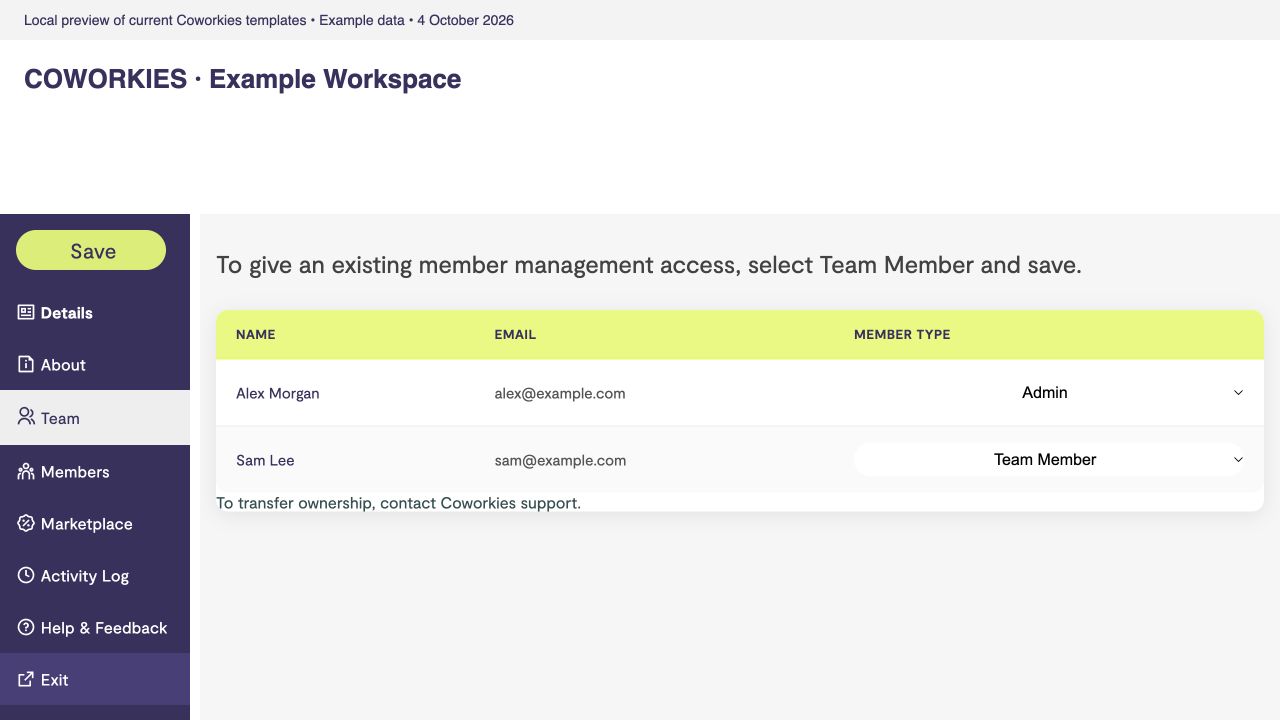
*Current platform template rendered locally with example data, 4 October 2026.*
## Understand the roles
| Label | Meaning |
|---|---|
| **Admin** | The space's owner relationship. Has management access. |
| **Team Member / Staff** | A colleague who can access Space Admin. |
| **Verified Member** | A confirmed coworker; this role alone does not grant admin access. |
| **Non-verified Member / Guest** | A connection to the space awaiting verification. Does not grant admin access. |
## Give a colleague staff access
1. Ask the colleague to create a Coworkies account and connect it to your space.
2. Open that space's **Members** section and find their row.
3. Select **Team Member / Staff** in the relationship dropdown.
4. Select **Save** and wait for confirmation.
5. Reopen **Team** to check the role, then ask the colleague to sign in again and check **Manage Spaces**.
If the colleague is not listed, check that their account is linked to the correct space. This table changes existing relationships; it does not contain a bulk email invitation form.
## Change or remove management access
Find the person in **Team**, select an appropriate member role and save. This changes their relationship to the space; it does not delete their personal account.
Your own role cannot be changed through an ordinary self-edit. Staff cannot change another owner's role or assign ownership. The **Admin** option is disabled in the selector; contact [support](https://docs.coworkies.com/spaces/help/) to transfer ownership.
Review access when someone leaves the team. Use [Activity Log](https://docs.coworkies.com/spaces/activity-log/) to review recorded role changes.
---
# What is the Coworkies job scouting service?
Source: https://docs.coworkies.com/services/scouting/
> Coworkies sources talent for coworking, hospitality and workspaces via our network, universities, and referrals. We never poach; we focus on candidates actively seeking opportunities.
Coworkies helps companies in coworking, hospitality and workspaces find ideal candidates. We use our network, university relationships, and referrals to source talent. We never poach—we focus on people actively seeking opportunities.
## Job Scouting Service
Our Job Scouting service is designed to assist companies in coworking, hospitality and workspaces in finding the ideal candidates to join their teams. We leverage our extensive network of professionals, close relationships with universities, and various external resources to source potential talent.
Importantly, we operate with integrity and respect for the business community; we never poach candidates from other companies. Instead, we focus on individuals actively seeking opportunities within our industry, often receiving hot recommendations from our trusted network. By using our Job Scouting service, companies can tap into a pool of talented and motivated individuals who are eager to contribute and make a difference.
## Ways to reach out
Learn more about our jobs services by reaching out:
1. Via our [Contact Form](/contact)
2. Directly on Linkedin here: [Pauline Roussel](https://www.linkedin.com/in/paulineroussel/)
## Related docs
- [Services Overview](/services/) – All Coworkies services
- [Education](/services/education/) – Training and workshops
- [Contact](/contact/) – Get in touch
---
# What services does Coworkies offer?
Source: https://docs.coworkies.com/services/
> Coworkies supports hiring in coworking, hospitality and workspaces with job promotion and talent scouting. Space operators can also use Pro integrations and team workshops.
Coworkies supports hiring across coworking, hospitality and workspace businesses. Services include paid job ad promotion on the main page, Pro space access for API integrations, education workshops for community managers, and talent scouting to find ideal candidates. The base platform is free for all coworking spaces and coworkers.
## Available services
| Service | Description | Who it's for |
|---------|-------------|--------------|
| **Job Ad Promotion** | Promote jobs on the main Coworkies job page for 30 or 90 days | Any employer or space admin |
| **Pro Spaces** | Space API keys and integration access | Coworking space operators |
| **Education** | Workshops and training for community managers and space teams | Space teams |
| **Job Scouting** | Talent sourcing through our network and university partnerships | Coworking, hospitality and workspace businesses |
## Pricing overview
- **Free**: Creating accounts, free job posting for signed-in users (space optional), space profile, member directory, admin panel
- **Paid job promotion**: 30-day or 90-day plans (contact for current pricing)
- **Pro spaces**: Monthly subscription (see [Pro Spaces](/services/pro-spaces/) for details)
- **Education & Scouting**: Custom pricing (contact us)
## Related docs
- [Job Promotions](/services/job-ads/) -- Paid job ad options
- [Pro Spaces](/services/pro-spaces/) -- Pro plan features
- [Education](/services/education/) -- Training and workshops
- [Job Scouting](/services/scouting/) -- Talent sourcing service
- [Billing & Invoicing](/services/billing-and-invoicing/) -- Payment and invoices
---
# Review and verify space members
Source: https://docs.coworkies.com/spaces/members/
> Find connected members, confirm their relationship to your space and save changes without granting unnecessary management access.
The **Members** table shows guests and verified coworkers connected to this space, with their name, email and relationship. It is separate from **Team**, which lists operators.
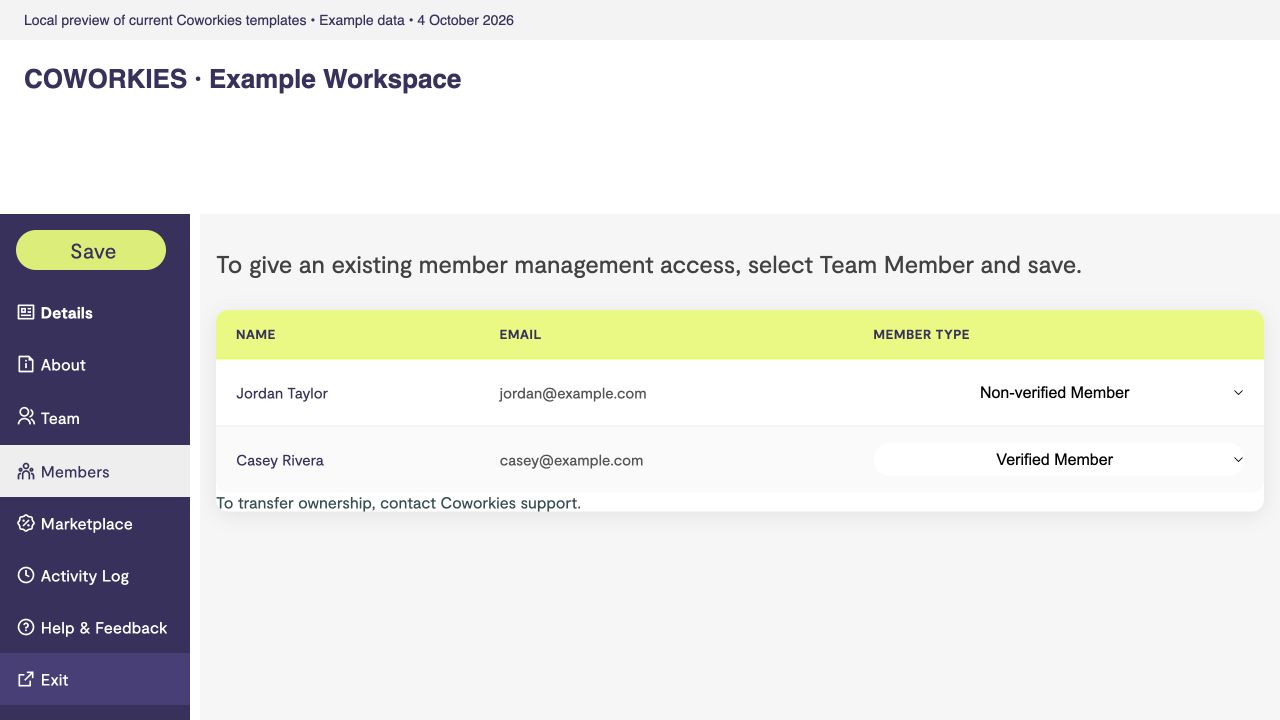
*Current platform template rendered locally with example data, 4 October 2026.*
## Verify a member
1. Open [Space Admin](https://docs.coworkies.com/spaces/space-administration/) and select **Members**.
2. Find the person and confirm that they belong to your community.
3. Choose **Verified Member** from the relationship dropdown.
4. Select **Save** and wait for confirmation.
5. Reopen the section to check that the role was saved.
A verified member is a community member. Verification alone does not make them a space administrator or automatically give them a paid personal subscription.
## Correct a relationship
Use the guest/non-verified role when the person should not be marked as a verified coworker. Select **Team Member / Staff** only when they should help manage the space; follow the [team access guide](https://docs.coworkies.com/spaces/space-team-management/).
## An empty or missing row
**No members available** means there are no member rows to display. Ask the person to connect their account to the right space, then refresh the section. Check **Team** if they already have staff access. Public **Community** content and the admin relationship table use different selection rules, so do not expect identical lists.
The table is not an account deletion or bulk import tool. For ownership corrections or unresolved membership issues, [contact support](https://docs.coworkies.com/spaces/help/).
---
# What social features does Coworkies offer?
Source: https://docs.coworkies.com/coworkers/social-features/
> Following, feed posts, P2P messaging, and social links to build your coworking network.
Coworkies offers following, feed posts, P2P messaging, social links, and space-based connections to help you build your professional network within the coworking community.
## Social Features Overview
Coworkies includes social networking features that help you connect with other coworkers, build your professional network, and stay engaged with your coworking community.

## Following Other Coworkers
### What is Following?
Following allows you to:
- **Stay Connected** - Keep up with coworkers you know or want to know
- **Build Your Network** - Connect with professionals in your space or city
- **Discover Opportunities** - See what others in your network are doing
- **Community Building** - Strengthen your coworking community connections
### How to Follow Someone
1. Visit a coworker's profile page
2. Click the "Follow" button on their profile
3. You'll start following them and see their updates
### Viewing Who You Follow
To see people you're following:
1. Go to your profile or another user's profile
2. Click on the "Following" tab or section
3. Browse the list of people you follow
### Unfollowing
To unfollow someone:
1. Go to their profile
2. Click "Unfollow" (the button changes after you follow)
3. You'll stop seeing their updates
## Followers
### Understanding Followers
Followers are people who follow you. They can see:
- Your profile updates
- Your feed posts
- Your activity (depending on privacy settings)
### Viewing Your Followers
To see who follows you:
1. Go to your profile page
2. Click on the "Followers" tab or section
3. Browse the list of your followers
### Managing Followers
- You don't need to approve followers (it's an open network)
- You can block users if needed (see account settings)
- Followers help build your professional network
## Feed Posts
### What are Feed Posts?
Feed posts are updates you can share with your network:
- **Professional Updates** - Share your work, projects, or achievements
- **Community News** - Post about events or happenings
- **Job Opportunities** - Share job openings or opportunities
- **Thoughts & Insights** - Share professional thoughts or insights
### Creating a Feed Post
1. Navigate to your profile or the feed section
2. Find the post creation area
3. Write your post (supports markdown formatting)
4. Add hashtags if desired
5. Publish your post
### Feed Post Features
- **Markdown Support** - Format your posts with markdown
- **Hashtags** - Use hashtags to categorize and discover content
- **Images** - Include images in your posts
- **Links** - Share links to external content
### Viewing Feed Posts
Feed posts appear:
- On your profile page
- In your followers' feeds
- In the main feed (if public)
- On space pages (if space-related)
## Social Links Management
### Adding Social Links
You can add links to your professional profiles:
1. Go to your profile settings
2. Find the "Social Links" section
3. Add links to:
- Website
- Twitter/X
- Facebook
- LinkedIn
- Instagram
- GitHub
- And more...
### Social Link Benefits
- **Professional Presence** - Showcase your online presence
- **Networking** - Make it easy for others to connect with you
- **Credibility** - Display your professional profiles
- **Discovery** - Help others find you on other platforms
## Connecting with Your Space Community
### Space-Based Connections
Coworkies makes it easy to connect with people in your space:
- **Space Members** - See and connect with other members of your space
- **City Connections** - Discover coworkers in your city
- **Space Feed** - See posts from your space community
### Building Your Network
Tips for building connections:
1. **Follow Space Members** - Connect with people in your coworking space
2. **Engage with Posts** - Like and comment on feed posts
3. **Share Updates** - Post about your work and projects
4. **Attend Events** - Meet people at coworking events
5. **Be Active** - Regular activity helps you discover and be discovered
## Privacy & Visibility
### Profile Visibility
You can control:
- Who can see your profile
- Who can follow you
- What information is visible
- Feed post visibility
### Privacy Settings
Manage privacy in your account settings:
- Profile visibility options
- Follower approval (if enabled)
- Activity visibility
- Contact information display
## Best Practices
### Building Your Network
1. **Be Authentic** - Share genuine updates and insights
2. **Engage Regularly** - Post and interact with others' content
3. **Follow Relevant People** - Connect with people in your industry or space
4. **Share Value** - Post content that's useful or interesting to others
### Professional Networking
1. **Complete Your Profile** - A complete profile attracts more connections
2. **Add Social Links** - Make it easy for others to find you elsewhere
3. **Post Regularly** - Regular posts keep you visible in the network
4. **Engage Thoughtfully** - Meaningful interactions build stronger connections
### Community Engagement
1. **Space Connections** - Prioritize connecting with your space community
2. **Local Network** - Build connections in your city
3. **Industry Connections** - Connect with people in your field
4. **Event Networking** - Use events to meet and connect with people
## Troubleshooting
### Cannot Follow Someone
If you can't follow someone:
- Check if they've blocked you
- Verify your account is active
- Try refreshing the page
- Contact support if issues persist
### Feed Posts Not Showing
If your posts aren't appearing:
- Check your privacy settings
- Verify the post was published
- Check if you're viewing the correct feed
- Refresh the page
### Social Links Not Displaying
If social links aren't showing:
- Verify links are saved in your profile settings
- Check that links are valid URLs
- Ensure your profile is set to visible
- Try updating the links again
## Related docs
- [P2P Messaging](/coworkers/p2p-messaging/) - Direct messaging with coworkers
- [People Directory](/coworkers/directory/) - Browse and find coworkers
- [Post a Gig](/coworkers/post-a-gig/) - Share gigs and opportunities
---
# Check the space Activity Log
Source: https://docs.coworkies.com/spaces/activity-log/
> Review recorded profile and team changes with their date, actor and details to understand what changed.
**Activity Log** shows recorded changes for the space you are managing. It helps explain a profile update or role change.
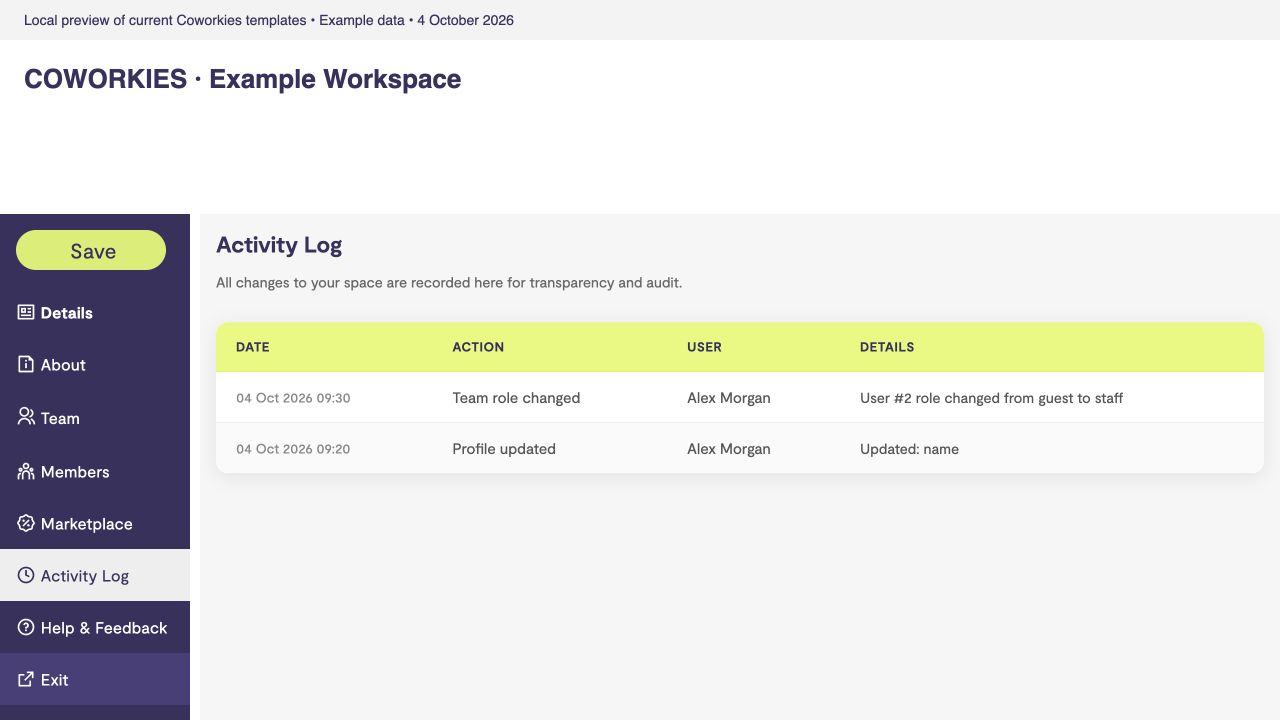
*Current platform template rendered locally with example data, 4 October 2026.*
## Read the log
1. Open [Space Admin](https://docs.coworkies.com/spaces/space-administration/) for the correct space.
2. Select **Activity Log**.
3. Look at **Date**, **Action**, **User** and **Details** for the relevant entry.
A profile update can show changed fields such as name or logo. A team role change can show the person's identifier and previous/new relationship. System actions may show **System** as the user.
The log is a record, not an undo control. Its presence does not guarantee that every historical action was captured. If it says **No activity recorded yet**, no entries are available for this space.
If you do not recognize a change, check [team access](https://docs.coworkies.com/spaces/space-team-management/) and contact [support](https://docs.coworkies.com/spaces/help/) with the space name and entry date. Avoid including API keys or other secrets in your report.
---
# How do Coworkies job promotions work?
Source: https://docs.coworkies.com/services/job-ads/
> Coworkies promotes a transparent job market. Promote your ads to reach more candidates; we connect businesses with talent in coworking, hospitality and workspaces.
Coworkies aims to make the job market more transparent and accessible. Promote your job ads to reach more candidates; our platform connects businesses with talent in coworking, hospitality and workspaces through intuitive tools and resources.
## Our Purpose with the Coworkies Job Board
At Coworkies, our mission is to enhance the understanding and distribution of jobs within our industry. We believe in fostering a job market that is transparent, accessible, and beneficial for all its participants. By providing intuitive tools and insightful resources, we aim to help businesses and job seekers navigate the employment landscape with confidence and precision. Through our platform, we strive to connect talented individuals with the right opportunities, driving growth and innovation in the coworking, hospitality and workspaces sectors.
## Ways to reach out
Learn more about our jobs services by reaching out:
1. Via our [Contact Form](/contact)
2. Directly on Linkedin here: [Pauline Roussel](https://www.linkedin.com/in/paulineroussel/)
## Related docs
- [Add Paid Job](/jobs/add-paid-job/) – Create promoted job ads
- [Job Pricing](/jobs/pricing/) – Job ad pricing
---
# Browse the space Marketplace
Source: https://docs.coworkies.com/spaces/space-deals-marketplace/
> Read partner offers from Space Admin and check the provider’s terms before using an offer.
**Marketplace** displays partner offers available to space operators. Each offer can show its name, provider, description, logo and a **Learn More** link.
## Use an offer
1. Open [Space Admin](https://docs.coworkies.com/spaces/space-administration/) and select **Marketplace**.
2. Read the offer and provider details.
3. Follow **Learn More** if it is available.
4. Check the provider's eligibility, price, expiry and instructions before requesting or purchasing anything.
Availability varies. An offer may have information without a link, and the section can be empty when no offers are available. The admin view does not provide a universal claim button or purchase history. For questions about a particular offer, contact the provider or [Coworkies support](https://docs.coworkies.com/spaces/help/).
---
# Create and manage space API keys
Source: https://docs.coworkies.com/spaces/api-keys/
> Create a scoped key for a Pro space, choose permissions, store the secret safely and rotate or revoke old keys.
The **API Keys** section is visible when the space has Pro access. You also need permission to manage that space. Keys created here are tied to this space; they do not grant unrestricted platform access.
## Create a key
1. Open **API Keys** and select **Create API Key**.
2. Enter a descriptive **Name**, such as `Website job board`.
3. Select the permissions your integration needs. Choose read access for displaying data and job write access only if it must create or unpublish jobs.
4. Optionally set **Expires in (days)** and an **IP whitelist** of your server's outgoing IP addresses.
5. Select **Create Key**.
6. Copy the complete key immediately. It is only revealed at creation or rotation; the normal list shows a masked key.
7. Store it in your server's secret configuration and make the first read request from the [API quick start](https://docs.coworkies.com/api/).
Read-only permissions produce a restricted key; write permissions produce a live key. These labels describe key permissions, not a separate testing environment.
Use `X-API-Key` or `Authorization: Bearer` headers. Keep keys out of public browser scripts, repositories, screenshots and URLs.
## Review, rotate or revoke
The list shows status, permissions, creation, last use and request count, with expiry information when set.
- **Rotate** replaces the selected key with a new secret and revokes the old one. Update your integration immediately; there is no overlap period promised by this action.
- **Revoke** immediately removes access for applications using the key. Read the confirmation and make sure you chose the right key.
If you lose the complete secret, create a replacement or rotate it. If an integration returns `401`, check whether the key is active, expired or revoked and whether its IP restriction matches the requesting server. For `403`, check permissions and space scope.
See [API authentication and errors](https://docs.coworkies.com/api/) for examples.
---
# Understand Pro access and billing
Source: https://docs.coworkies.com/spaces/plans/
> Distinguish space management rights, a space’s Pro access and the personal account that owns a subscription.
Three separate things determine what you can use: your role at the space, the space's Pro access, and the personal account that owns a paid subscription.
## What you can do without Pro
Authorized operators can maintain the public profile, edit Details and About, manage team/member relationships, browse Marketplace and review Activity Log. A paid subscription does not replace the requirement for management access.
## Pro and integrations
A space marked Pro can show **API Keys**. Job creation through the API can publish automatically for a confirmed Pro space. Always check the returned job status; see [API documentation](https://docs.coworkies.com/api/).
A user subscription and the space's Pro status are related through coverage. Do not assume every location of a brand, or every staff member, is covered just because one account has a subscription.
## Open billing
Subscriptions and invoices belong to the purchasing user's account. Open [your profile Billing view](https://www.coworkies.com/profile/my#/profile/billing) while signed in to that account. Check the current plan and checkout information before purchasing or changing a subscription.
For a coverage mismatch, contact [support](https://docs.coworkies.com/spaces/help/) with the space name and purchasing account email. For payment history, see [Billing & Invoicing](https://docs.coworkies.com/services/billing-and-invoicing/).
---
# Get help with Space Admin
Source: https://docs.coworkies.com/spaces/help/
> Find the support email and feedback widget, and include useful details when reporting an access or saving issue.
Open **Help & Feedback** in Space Admin for support information, a link to these docs and the feedback widget. You can also email [hi@coworkies.com](mailto:hi@coworkies.com).
## Try these checks first
| Problem | Check |
|---|---|
| No management access | Correct account, confirmed listing, and an owner/staff relationship. |
| Colleague missing | Their account is connected to this space; check both Team and Members. |
| Changes disappeared | Select Save, read the result, and verify the correct public page. |
| City or page slug is wrong | These are read-only fields; request a correction from support. |
| API Keys is missing | The space needs Pro access; see [API Keys](https://docs.coworkies.com/spaces/api-keys/). |
## Send a useful report
Include the space name and public URL, the section you were using, the action you tried, the exact error message and when it happened. A screenshot helps; hide private member emails, billing details and API keys first.
For an ownership request, explain your role at the space and provide your Coworkies account email. Do not create a duplicate listing to work around an access issue. Support response times vary.
---
# Use your space’s public job board
Source: https://docs.coworkies.com/spaces/space-job-board/
> Understand which jobs appear on a space profile and manage your own postings through the main Jobs area.
A space's public **Jobs** tab shows active jobs associated with that space. Jobs can be for the operator or a company in its community. The listing can help candidates discover the space's story and work environment.
## Check the board
1. Open your public space page and select **Jobs**.
2. Open a listing to check the title, company, description and application destination.
3. If a job is missing, check its space association, publication status and expiration date.
Use the main [Jobs area](https://www.coworkies.com/jobs) to post jobs and [My Jobs](https://www.coworkies.com/jobs/my-jobs) to manage your account's postings. Any signed-in user can choose free posting; space admin access is not required. A space association is optional and adds a published job to that space's board. Free posting and paid promotion have different benefits; check the terms in the posting flow.
For an automated board, a Pro space can create an [API key](https://docs.coworkies.com/spaces/api-keys/). The [Jobs API](https://docs.coworkies.com/api/jobs/) explains active results, automatic publication and expiry. For access or association issues, [contact support](https://docs.coworkies.com/spaces/help/).
## White-label career portal, custom domain & website embed (Beta)
Space operators can also share a standalone white-label career portal (`/careers/{space_slug}`), connect a custom subdomain (`careers.yourspace.com`) via DNS `CNAME`, embed live job listings directly on their own website, and customize brand colors from **Space Admin -> Jobs -> Career portal & brand colors `Beta`**.
Read [Set up your career portal, custom domain and website embed (Beta)](https://docs.coworkies.com/spaces/career-portal/) for the step-by-step setup guide.
---
# Set up your career portal, custom domain and website embed (Beta)
Source: https://docs.coworkies.com/spaces/career-portal/
> Connect a custom career subdomain via DNS CNAME, embed your live job board on your website, and customize your brand colors in Space Admin.
Learn how to launch a white-label career portal for your coworking space, connect a custom subdomain (such as `careers.yourspace.com`), embed live job listings on your website, and match the portal to your brand colors.
**Note:**
**Beta (Testing):** Career portal custom domains, website embeds, and brand color themes are currently in Beta testing inside Space Admin. All active jobs associated with your space—both operator roles and member company openings—are included automatically.
## Prerequisites
- **Space Admin access:** You must be signed in with an **Admin/owner** or **Team Member/staff** role for the space. See [Open and use Space Admin](https://docs.coworkies.com/spaces/space-administration/).
- **Confirmed space profile:** Your space must be confirmed and have a public URL slug (`/spaces/{space_slug}`).
- **DNS access (optional):** To use a custom subdomain (`careers.yourspace.com`), you need permission to add a `CNAME` record in your domain's DNS provider (Cloudflare, GoDaddy, Namecheap, Route 53, or Google Domains).
## Open Career portal & brand colors (Beta)
1. Sign in to Coworkies and open **Space Admin** for your space (`/spaces/{space_id}/editspace`).
2. Select **Jobs** in the left sidebar.
3. In the top toolbar, select **Career portal & brand colors `Beta`**.
The page is organized into three steps in order: **1. Custom domain**, **2. Share & website embed**, and **3. Brand colors & theme**.
---
## 1. Connect your own subdomain (Optional)
You can serve your white-label career portal on your own subdomain with automatic Cloudflare SSL. If you skip this step, your portal is already live at `https://www.coworkies.com/careers/{space_slug}`.
### Step 1: Enter your custom subdomain
In the **1. Custom domain** card, enter the full subdomain where candidates will visit your job board:
```text
careers.yourspace.com
```
You can use any valid subdomain prefix on your domain, such as `careers.yourspace.com`, `jobs.yourspace.com`, or `talent.yourspace.com`.
### Step 2: Add the DNS CNAME record
Open your DNS provider and create a `CNAME` record pointing your subdomain to `careers-proxy.coworkies.com`:
| Record Type | Host / Name | Target / Value | TTL | Proxy Status (if using Cloudflare) |
|---|---|---|---|---|
| `CNAME` | `careers` (or `jobs`) | `careers-proxy.coworkies.com` | Auto / 300s | DNS only (grey cloud) or Proxied |
### Step 3: Save & Verify DNS
1. Return to Space Admin and click **Save & Verify DNS**.
2. Coworkies checks your subdomain's `CNAME` record and updates the status badge:
- **`Active & SSL Ready`**: Your DNS `CNAME` points to `careers-proxy.coworkies.com`. Cloudflare issues your SSL certificate automatically, and your standalone portal URL updates to `https://careers.yourspace.com`.
- **`Pending DNS CNAME`**: Your subdomain is saved, but DNS has not propagated yet. Once your DNS provider publishes the `CNAME` record, click **Save & Verify DNS** again—or simply visit `https://careers.yourspace.com` to trigger automatic edge verification.
### Verify DNS from your terminal
You can check whether your `CNAME` record has propagated using `dig`:
```bash
dig +short CNAME careers.yourspace.com
# Expected output:
# careers-proxy.coworkies.com.
```
### Custom domain constraints
- **One domain per space:** Each custom subdomain can only be linked to one space at a time.
- **Subdomains required:** Standard DNS does not allow `CNAME` records on root/apex domains (`yourspace.com`) unless your DNS provider supports CNAME flattening. Always use a subdomain such as `careers.yourspace.com`.
- **Reserved domains:** `coworkies.com`, `coworkiesbook.com`, `workers.dev`, and `localhost` hostnames cannot be registered as custom domains.
---
## 2. Share your direct link or embed on your website
In the **2. Share & website embed** card, choose how candidates reach your job board.
### Option A: Standalone Career Portal Link
Link directly to your hosted white-label career portal from your website's top navigation, footer, LinkedIn page, or newsletter:
```text
https://www.coworkies.com/careers/your-space-slug
```
When a custom domain is active, this field automatically displays `https://careers.yourspace.com`. Click **Copy Portal URL** to copy it to your clipboard, or **View career portal ↗** to open it in a new tab.
### Option B: Website Embed Snippet (Recommended)
Embed your live job board directly inside an existing page on your website (WordPress, Webflow, Squarespace, Wix, Framer, or custom HTML):
```html
```
How the JavaScript embed works:
- **Shadow DOM isolation:** The widget renders inside a Shadow DOM root so your website's CSS never breaks the job cards, and the widget never affects your site's styles.
- **Automatic Google Jobs SEO:** The script automatically injects `schema.org/JobPosting` JSON-LD structured data into your webpage's ``, allowing Google Jobs to index your open roles directly on your domain.
- **Role grouping:** When your space has both operator jobs and member company jobs, the widget automatically groups them into **Roles with {Space Name}** and **Roles at Member Companies**.
### Option C: Iframe Embed (Fallback)
If your content management system blocks `