The Data Analytics section provides an interactive map showing coworking job market trends across cities and job types. Filter by city (London, Berlin, New York, Paris, etc.) and job type (Community Manager, Marketing, Event Manager) to research markets and plan your job postings. Available for Pro members by request.
Data Analytics Overview
Note: The Data Analytics section is available for Pro members and provides advanced insights into the coworking job market.
Analytics Access — Available ONLY Upon Request!
To access the Data Analytics section:
- Navigate to your space admin panel
- Click “Data” in the left navigation menu
- The analytics map interface will load
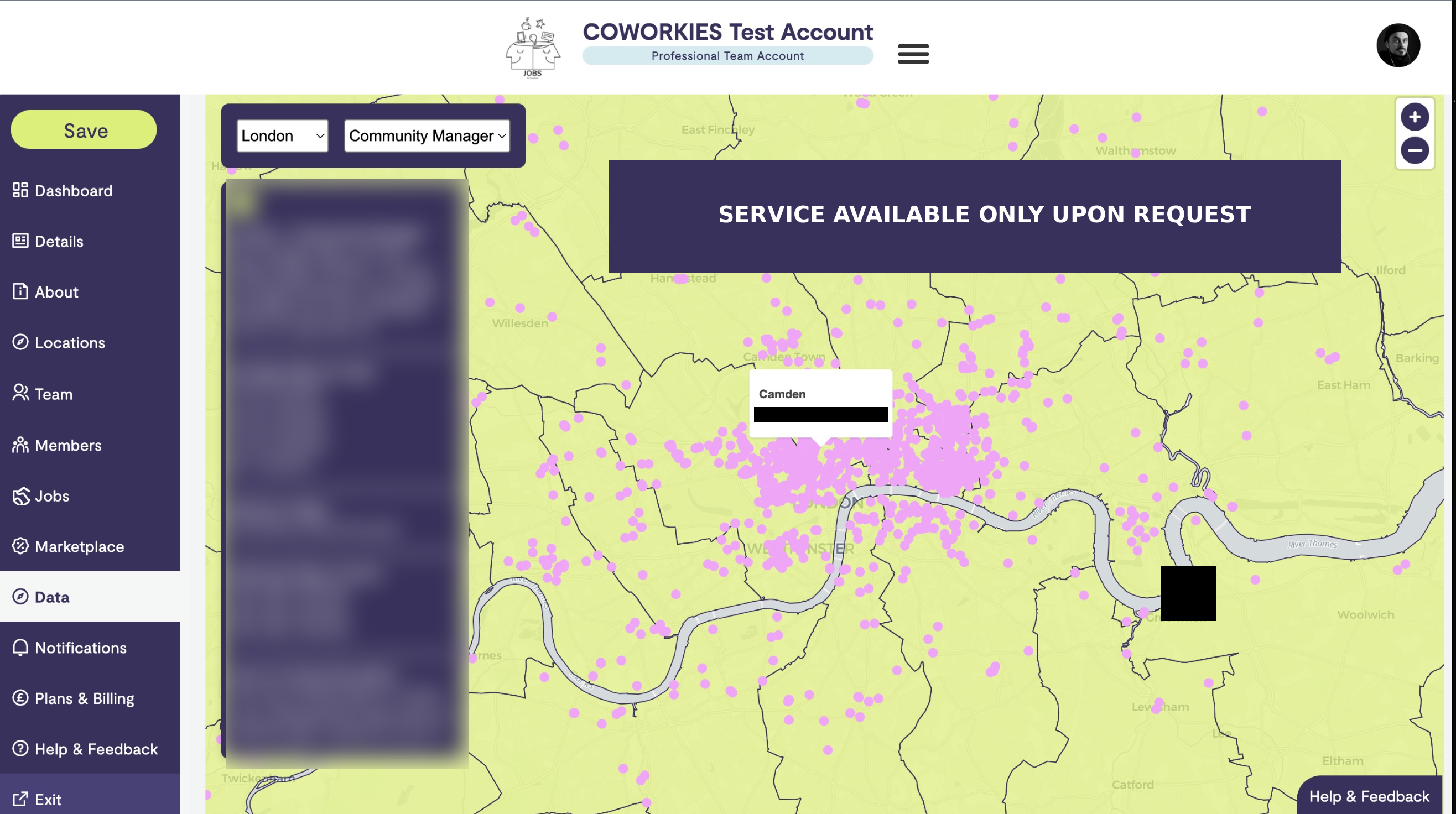
Understanding the Analytics Map
The analytics interface features an interactive map that displays:
- Geographic Distribution - Job opportunities across different cities
- Job Type Distribution - Concentration of different job types
- Market Insights - Trends and patterns in the coworking job market
Map Controls
The map includes several controls for filtering and exploring data:
- Zoom Controls - Use the + and - buttons to zoom in and out
- Pan - Click and drag to move around the map
- City Filter - Select specific cities to focus your analysis
- Job Type Filter - Filter by job categories (Community Manager, Marketing, Event Manager, etc.)
Filtering Data
City Selection
Use the city dropdown to filter data by location:
- Select a specific city to see data for that location
- Available cities include major coworking hubs like:
- London
- Berlin
- New York
- Paris
- Barcelona
- Sydney
- And more…
Job Type Selection
Filter by job category to see specific types of opportunities:
- Community Manager - Community management positions
- Marketing - Marketing and communications roles
- Event Manager - Event planning and management positions
- Additional job types as available
Information Panel
The information panel on the left side of the screen provides:
- Loading Status - Shows when data is being loaded
- Data Summary - Overview of current filter selections
- Insights - Key findings based on your filters
- Toggle Button - Collapse or expand the information panel
Using the Information Panel
- The panel displays relevant data based on your current filters
- Use the toggle button (-) to minimize the panel for a larger map view
- Click the toggle again to expand and see detailed information
Interpreting Location-Based Insights
The analytics map helps you understand:
Market Opportunities
- High Demand Areas - Cities with many job opportunities
- Emerging Markets - Locations with growing job postings
- Competition Levels - Areas with many or few job listings
Job Type Trends
- Popular Roles - Which job types are most in demand
- Geographic Preferences - Where different job types are concentrated
- Market Gaps - Opportunities in underserved areas or categories
Pro Analytics Features
Pro members have access to:
- Detailed Map Data - Comprehensive geographic insights
- Advanced Filtering - Multiple filter combinations
- Historical Trends - Understanding market changes over time
- Export Capabilities - Download data for further analysis
Best Practices
Using Analytics for Job Posting
- Market Research - Use the map to identify high-opportunity cities
- Competitive Analysis - Understand where similar jobs are posted
- Timing Decisions - Identify when to post jobs in specific markets
- Targeting - Focus your job postings in areas with relevant opportunities
Strategic Planning
- Expansion Planning - Identify cities for potential expansion
- Resource Allocation - Understand where to focus recruitment efforts
- Market Positioning - See how your space compares to others
- Trend Analysis - Track changes in the job market over time
Troubleshooting
Map Not Loading
If the map doesn’t load:
- Check your internet connection
- Refresh the page
- Clear your browser cache
- Contact support if the issue persists
No Data Showing
If no data appears:
- Try adjusting your filters
- Select different cities or job types
- Check that you have Pro membership (if required)
- Verify your account has analytics access
Filter Issues
If filters aren’t working:
- Clear all filters and start fresh
- Try selecting one filter at a time
- Refresh the page
- Check that you’re using a supported browser
Related Documentation
- Space Admin Dashboard - Overview of dashboard features
- Space Plans & Upgrades - Learn about Pro features
- Job Board Management - Managing your job postings