Multi-Location Management
If your coworking brand operates multiple locations, the Locations section allows you to manage all spaces under your brand from a single admin panel. This feature is particularly useful for coworking chains, franchises, or brands with multiple spaces in different cities.
Accessing Locations Management
To access the Locations section:
- Navigate to your space admin panel
- Click “Locations” in the left navigation menu
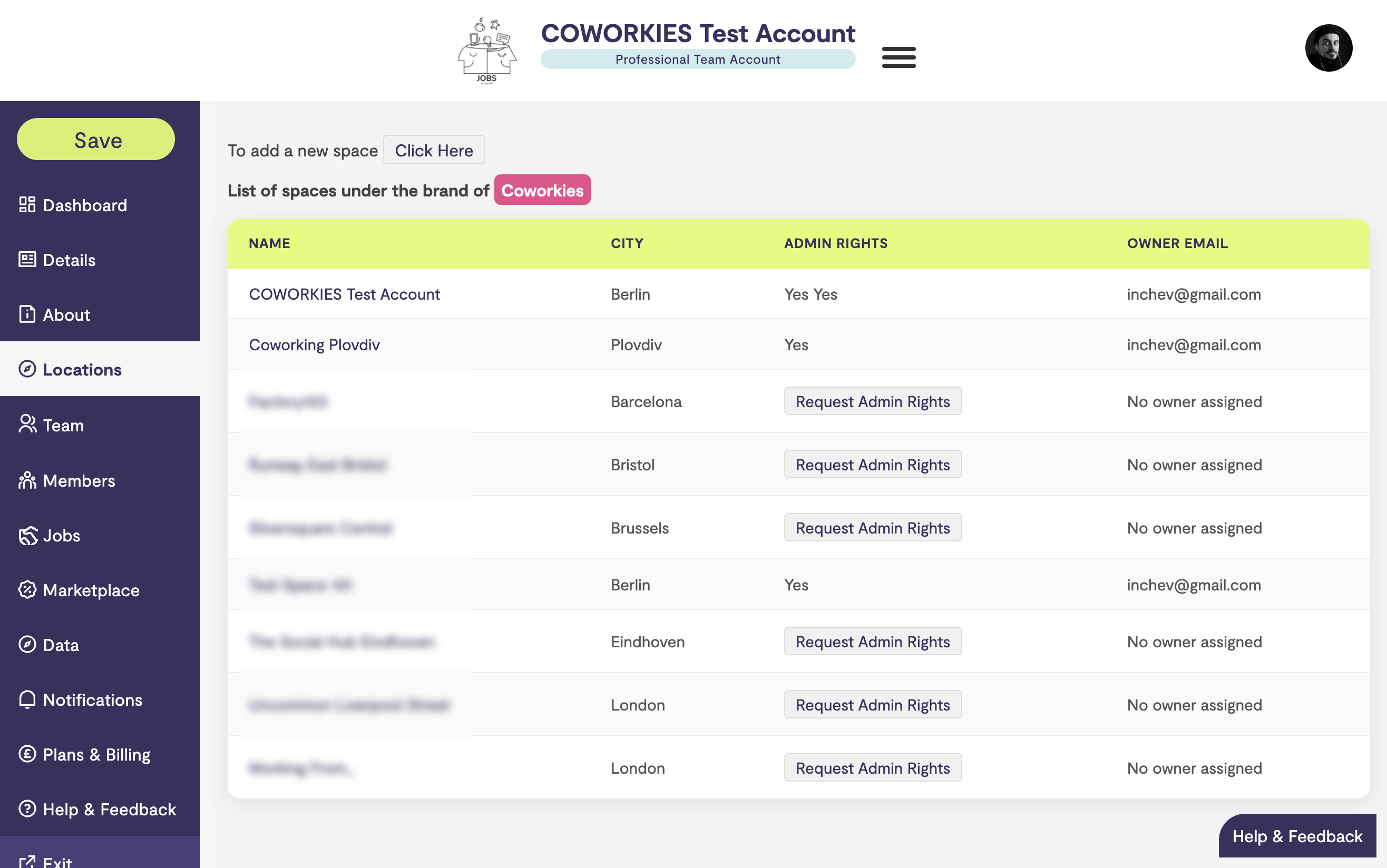
- You’ll see a list of all spaces associated with your brand
Note: The Locations section is only visible if your brand has multiple spaces or if you’re part of a multi-location brand.
Understanding Brand Spaces
All spaces under the same brand name are grouped together. This allows you to:
- View all locations in one place
- Manage multiple spaces efficiently
- Request admin rights for other locations
- Maintain brand consistency across locations
Viewing Your Brand Spaces
The Locations table displays:
- Name - The name of each space (clickable link to the space page)
- City - The city where the space is located
- Admin Rights - Whether you have administrative access to that space
- Owner Email - The email address of the space owner
Adding a New Location
To add a new space location to your brand:
- Click “Click Here” button in the Locations section
- A modal window will open with the space creation form
- Fill in the required information:
- Space name
- City and address
- Contact information
- Space details
- Submit the form to create the new location
The new space will appear in your Locations list once it’s been created and approved.
Admin Rights
Understanding Admin Rights
Admin rights determine whether you can manage a specific space:
- Yes - You have full administrative access to that space
- Request Admin Rights - You can request access if you don’t have it
Requesting Admin Rights
If you need to manage a space but don’t have admin rights:
- Find the space in your Locations list
- Click “Request Admin Rights” next to that space
- Your request will be sent to the space owner
- Once approved, you’ll have full admin access
Note: The “Request Admin Rights” button will change to “Request Sent” after you submit your request, and you won’t be able to click it again until the owner responds.
Managing Multiple Locations
Benefits of Multi-Location Management
- Centralized Control - Manage all your spaces from one dashboard
- Consistent Branding - Ensure all locations maintain brand standards
- Efficient Operations - Switch between locations without logging out
- Shared Resources - Access deals and services across all locations
Best Practices
- Regular Updates - Keep information current for all locations
- Consistent Messaging - Maintain consistent descriptions and branding
- Team Coordination - Ensure team members have appropriate access
- Location-Specific Content - Customize content for each location while maintaining brand identity
Brand Management
Brand Name
All spaces under the same brand are identified by the brand name, which appears prominently in the Locations section. This helps you:
- Identify which spaces belong to your brand
- Group related spaces together
- Maintain brand consistency
Brand Consistency
When managing multiple locations:
- Use consistent imagery and branding
- Maintain similar descriptions and messaging
- Keep contact information up to date
- Ensure all locations reflect your brand values
Troubleshooting
Location Not Appearing
If a space isn’t showing in your Locations list:
- Verify the space is associated with your brand name
- Check that you have the correct admin access
- Contact support if the space should be linked to your brand
Cannot Request Admin Rights
If you can’t request admin rights:
- Verify you’re logged into the correct account
- Check that the space is part of your brand
- Contact the space owner directly if needed
Access Issues
If you’re having trouble accessing a location:
- Verify your admin rights status
- Check that the space is active and approved
- Contact support for assistance
Related Documentation
- Space Administration - General admin panel overview
- Space Team Management - Managing team members across locations
- Adding a Space - How to add a new space to Coworkies