Go to Members in your space admin panel. You can verify members (vs guests), change member types, and—for Pro spaces—send deals, messages, and newsletters to verified members.
Members Management Overview
The Members section allows you to manage your community members - the coworkers who are part of your virtual coworking space profile on Coworkies. This is separate from the Team section, which manages administrative staff.
Accessing Members Management
To access the Members section:
- Navigate to your space admin panel
- Click “Members” in the left navigation menu
- You’ll see a list of all community members
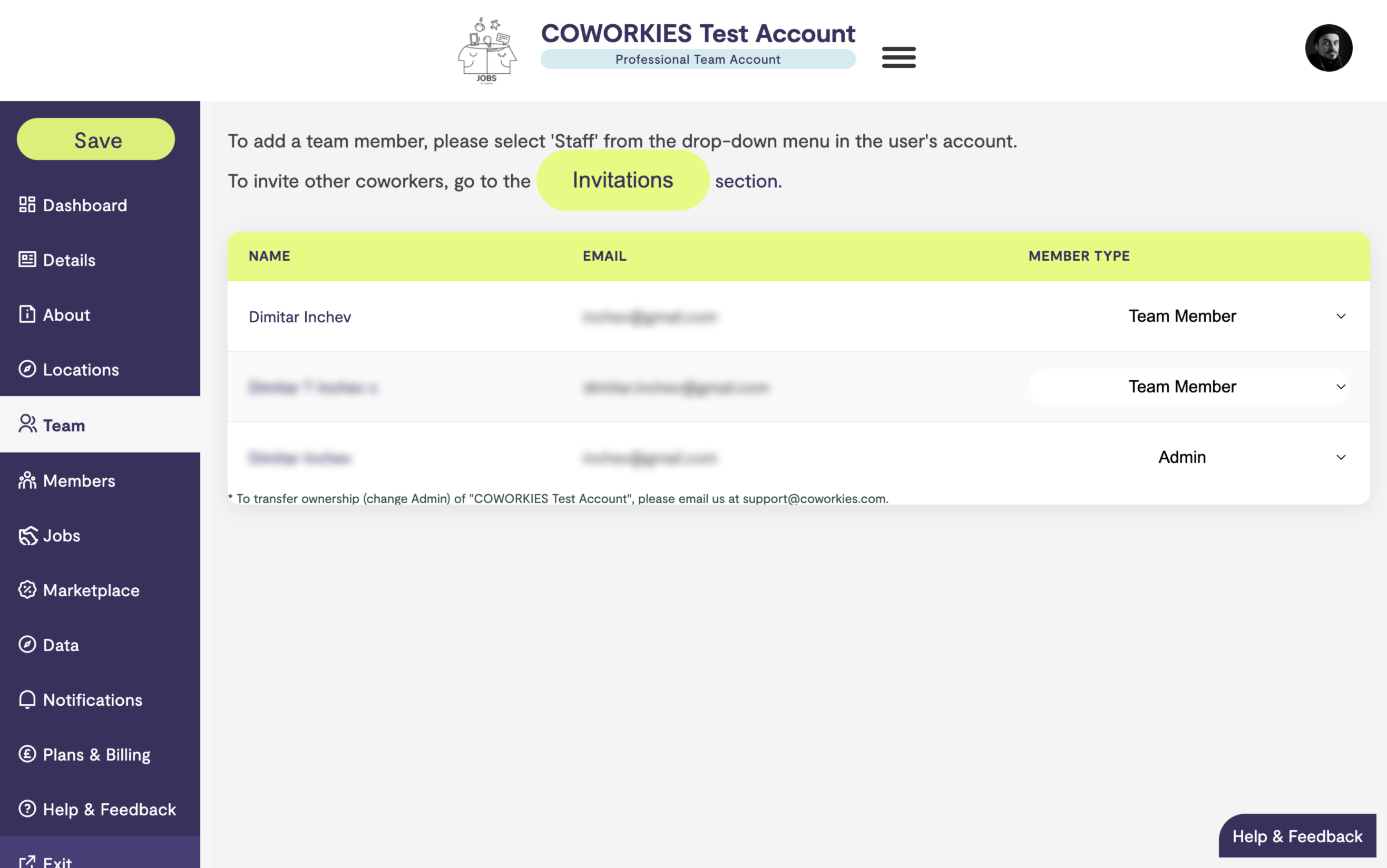
Understanding Members vs Team
It’s important to distinguish between:
- Members Section - For managing community members (coworkers who use your space)
- Team Section - For managing administrative staff (people who can edit space information)
For information about managing team members, see our Space Team Management guide.
Member Types
There are four types of community members:
Verified Members
- Status - Verified by space managers as legitimate community members
- Benefits - Pro spaces can send special deals, messages, and newsletters to verified members
- Visibility - Shown as official members of your space
- Management - Can be verified or unverified by space admins
Guests (Non-Verified)
- Status - People who have indicated they’ve visited or worked at your space
- Benefits - Limited access to space-specific features
- Visibility - Shown as visitors to your space
- Management - Can be upgraded to verified status
Staff
- Status - Team members who also appear in the community
- Benefits - Have both admin access and community member status
- Visibility - Shown as both team members and community members
- Management - Managed through both Team and Members sections
Owner (Admin)
- Status - Space owners who are also community members
- Benefits - Full admin access plus community member status
- Visibility - Shown as space owners
- Management - Cannot be changed from owner status
Managing Members
Viewing Members
The Members section displays a table with:
- Name - Member’s full name
- Email - Member’s email address
- Member Type - Current membership status (dropdown to change)
Changing Member Types
To change a member’s type:
- Find the member in the Members list
- Use the dropdown menu in the “Member Type” column
- Select the new member type:
- Verified Member - Official community member
- Guest - Visitor/non-verified member
- Staff - Team member (if applicable)
- The change is saved automatically
Note: Owner status cannot be changed through this interface.
Verifying Members
Why Verify Members?
Verifying members helps you:
- Build Trust - Shows legitimate community members
- Target Communications - Pro spaces can send targeted messages
- Offer Deals - Provide special offers to verified members
- Track Community - Understand your actual community size
How to Verify Members
- Navigate to the Members section
- Find the member you want to verify
- Change their type from “Guest” to “Verified Member”
- The change is saved immediately
Pro Member Benefits
For spaces with Pro membership, verified members unlock additional features:
Special Deals
- Send exclusive deals and offers to verified members
- Create member-only promotions
- Track deal redemption
Messaging
- Send direct messages to verified members
- Create targeted communications
- Build stronger community connections
Newsletters
- Send customized newsletters to verified members
- Share space updates and news
- Promote events and opportunities
Best Practices
Member Verification
- Verify Active Members - Verify people who regularly use your space
- Regular Review - Periodically review your member list
- Clear Criteria - Establish clear criteria for verification
- Communication - Let members know about verification benefits
Community Building
- Engage Verified Members - Use Pro features to engage with verified members
- Welcome New Members - Verify and welcome new community members
- Maintain List - Keep your member list up to date
- Track Growth - Monitor your verified member count
Member Privacy
Information Displayed
The Members section shows:
- Member names
- Email addresses
- Member types
This information is visible to space admins for management purposes.
Privacy Considerations
- Member information is only visible to space admins
- Members control their own profile visibility
- Email addresses are used for space communications only
- Respect member privacy when managing the list
Troubleshooting
Member Not Appearing
If a member isn’t showing in your list:
- Verify they’ve joined your space on Coworkies
- Check that they’ve indicated your space as their location
- Ensure they have a valid Coworkies account
- Contact support if the issue persists
Cannot Change Member Type
If you can’t change a member’s type:
- Verify you have admin permissions
- Check that the member isn’t locked (owner status)
- Refresh the page and try again
- Contact support if issues persist
Pro Features Not Available
If Pro features aren’t available:
- Verify your space has Pro membership
- Check your subscription status
- Review Pro feature requirements
- Contact support for assistance
Related docs
- Space Team Management – Managing administrative staff
- People Directory – Coworkers across the platform