
Review and verify space members
Find connected members, confirm their relationship to your space and save changes without granting unnecessary management access.
The Members table shows guests and verified coworkers connected to this space, with their name, email and relationship. It is separate from Team, which lists operators.
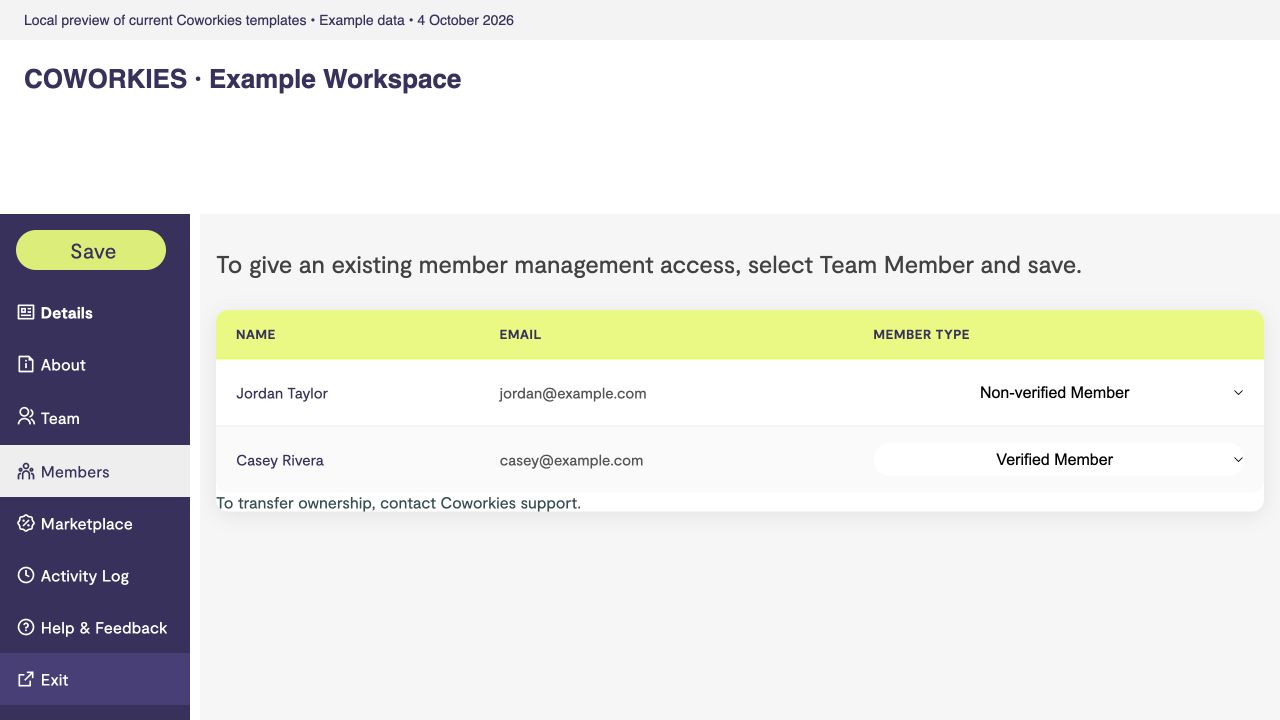 Current platform template rendered locally with example data, 4 October 2026.
Verify a member
- Open Space Admin and select Members.
- Find the person and confirm that they belong to your community.
- Choose Verified Member from the relationship dropdown.
- Select Save and wait for confirmation.
- Reopen the section to check that the role was saved.
A verified member is a community member. Verification alone does not make them a space administrator or automatically give them a paid personal subscription.
Correct a relationship
Use the guest/non-verified role when the person should not be marked as a verified coworker. Select Team Member / Staff only when they should help manage the space; follow the team access guide.
An empty or missing row
No members available means there are no member rows to display. Ask the person to connect their account to the right space, then refresh the section. Check Team if they already have staff access. Public Community content and the admin relationship table use different selection rules, so do not expect identical lists.
The table is not an account deletion or bulk import tool. For ownership corrections or unresolved membership issues, contact support.