
Manage your space team and access
Give an existing member staff access, save role changes and understand owner and staff restrictions.
Team lists the people connected to the space as owners or staff. Members lists guests and verified coworkers. Both use a relationship selector.
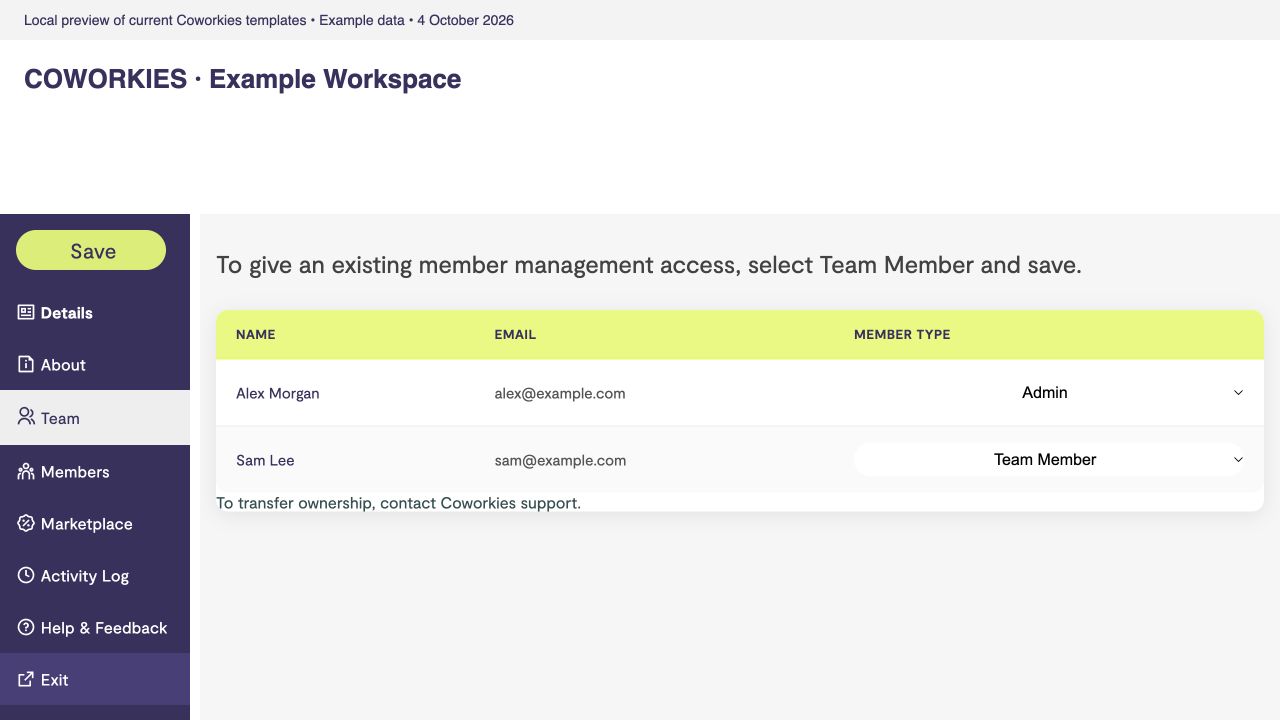 Current platform template rendered locally with example data, 4 October 2026.
Understand the roles
| Label | Meaning |
|---|---|
| Admin | The space’s owner relationship. Has management access. |
| Team Member / Staff | A colleague who can access Space Admin. |
| Verified Member | A confirmed coworker; this role alone does not grant admin access. |
| Non-verified Member / Guest | A connection to the space awaiting verification. Does not grant admin access. |
Give a colleague staff access
- Ask the colleague to create a Coworkies account and connect it to your space.
- Open that space’s Members section and find their row.
- Select Team Member / Staff in the relationship dropdown.
- Select Save and wait for confirmation.
- Reopen Team to check the role, then ask the colleague to sign in again and check Manage Spaces.
If the colleague is not listed, check that their account is linked to the correct space. This table changes existing relationships; it does not contain a bulk email invitation form.
Change or remove management access
Find the person in Team, select an appropriate member role and save. This changes their relationship to the space; it does not delete their personal account.
Your own role cannot be changed through an ordinary self-edit. Staff cannot change another owner’s role or assign ownership. The Admin option is disabled in the selector; contact support to transfer ownership.
Review access when someone leaves the team. Use Activity Log to review recorded role changes.