Access the admin panel from the top menu (lists all spaces you manage) or via the Edit button on your space page. From there you manage team, members, jobs, settings, and marketplace deals.
Accessing Your Space Admin Panel
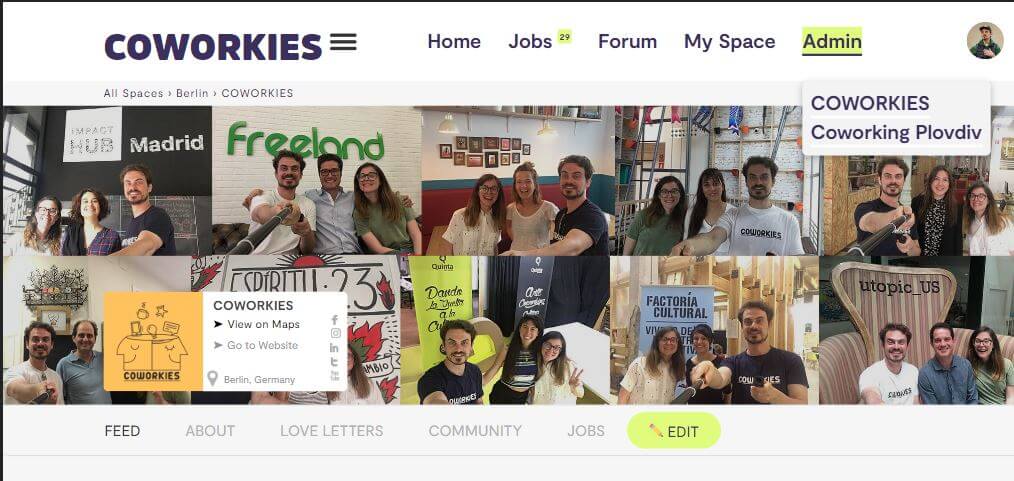
You can reach the administration panel of your coworking space in two ways:
1. From the Top Menu
Access to the admin panel for your coworking space is always available in the top menu. If you manage more than one coworking space, you will see a list of all of them there.
2. From Space Page
Alternatively, you can access the admin panel by navigating to the space page and clicking the Edit button on the right side of the secondary menu (see photo below).
 .
.
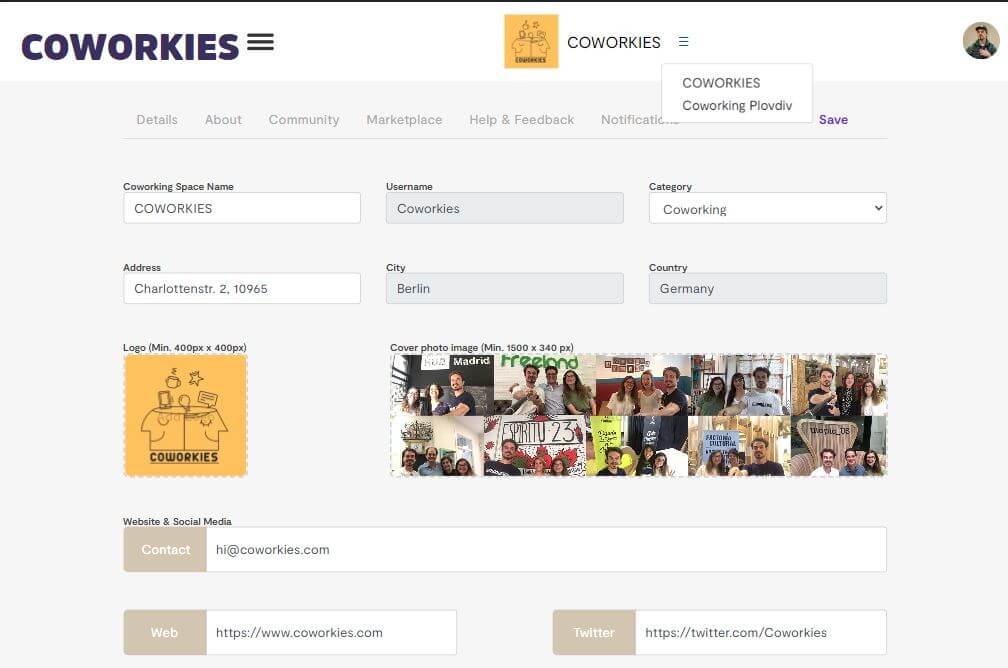
Once on the coworking space admin panel, you can manage all information related to your space, team, and access deals for products and services relevant to the operation of coworking spaces and their communities.
 .
.
Admin Panel Overview
The space administration panel is your central hub for managing all aspects of your coworking space on Coworkies. The panel is organized into several key sections accessible via the left navigation menu:
- Dashboard - Overview of your space’s performance and quick actions
- Details - Edit your space’s basic information, logo, cover image, and social links
- About - Manage your space’s story, description, and photo gallery
- Locations - Manage multiple locations under your brand (if applicable)
- Team - Manage team members with admin access
- Members - Manage your community members (verified coworkers, guests)
- Jobs - View and manage all job posts for your space
- Marketplace - Browse available deals and services for coworking spaces
- Data - View analytics and insights about your space (Pro feature)
- Notifications - Manage cluster invitations and notifications
- Plans & Billing - Manage your subscription and view invoices
- Help & Feedback - Get support and provide feedback
For a detailed overview of the Dashboard features, see our Dashboard Overview guide.
Quick Actions
From the dashboard, you can quickly:
- Post a New Job - Create and publish a job listing for your space
- Request a Service - Access the marketplace to find products and services
Job Performance Metrics
The dashboard displays important metrics about your job board:
- Total Clicks - Total number of clicks across all your job posts
- Clicks Per Job Post - Individual performance metrics for each job (Pro feature)
Note: Detailed analytics showing clicks per individual job post are available for Pro members. Free members will see a blurred preview of this feature with an upgrade prompt.
Job Management Overview
From the dashboard, you can see at a glance:
- Active Job Ads - Currently published jobs with quick edit/unpublish options
- Saved Drafts - Job posts that haven’t been published yet
- Expired Job Ads - Jobs that have passed their expiration date and can be relisted
For detailed job management instructions, see our Job Board Management guide.
Additional Resources
The dashboard also provides:
- Upcoming Events - Events relevant to your space
- Course Recommendations - Educational opportunities for community managers
- Best Practices - Articles and tips for managing your coworking space
Related docs
- Space Admin Dashboard – Detailed guide to dashboard features
- Space Team Management – Managing your team members