Go to Team in your space admin panel to add staff (who can edit space info, manage jobs and members) or admins (full control). Staff can be removed; admins cannot.
Team Management Overview
The Team section in your space admin panel is specifically for managing people who have administrative access to your space. This is different from the Members section, which manages your community members (coworkers).
Accessing Team Management
To access the Team section:
- Navigate to your space admin panel
- Click “Team” in the left navigation menu
- You’ll see a list of all team members with admin access
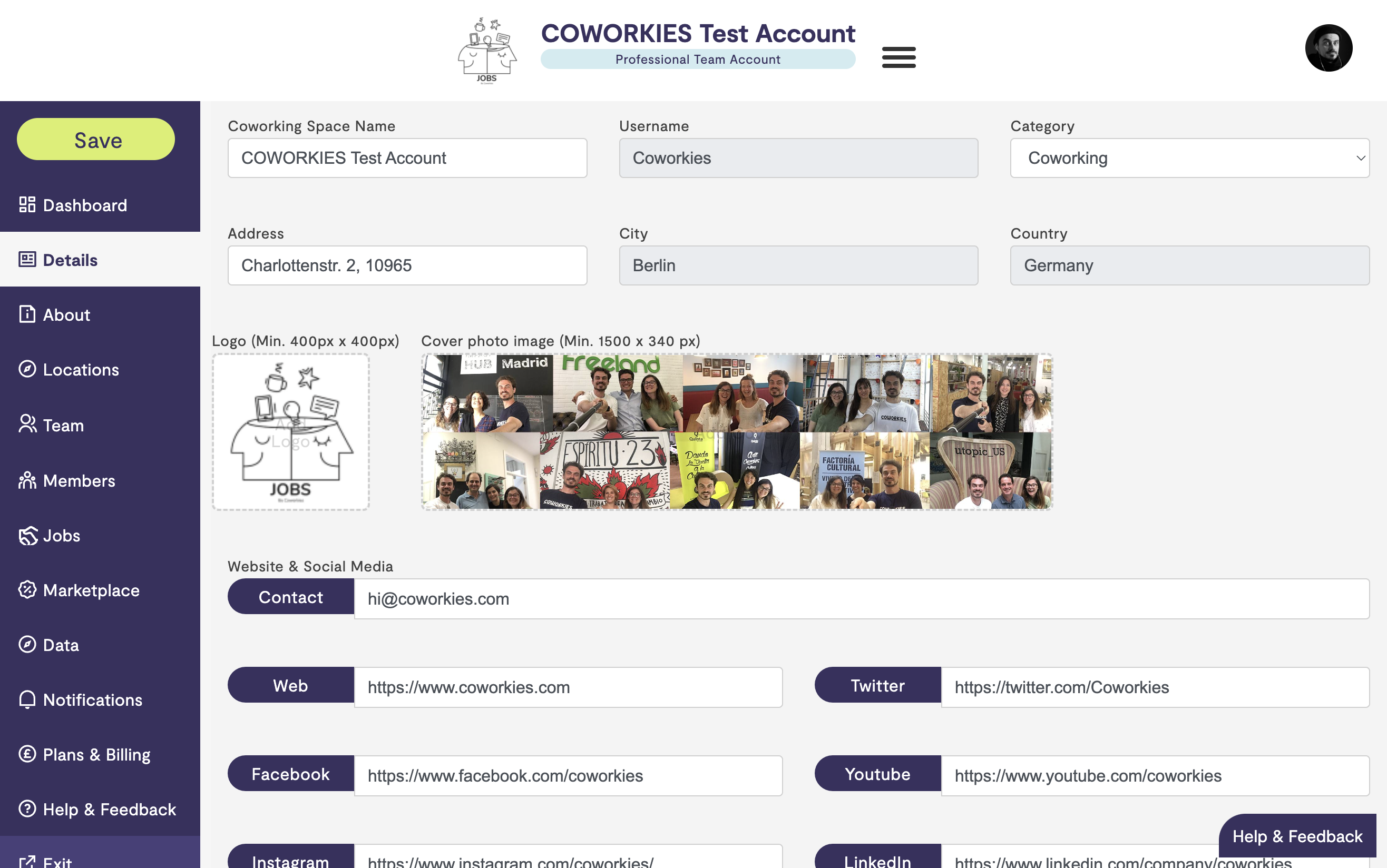
Understanding Team vs Members
It’s important to distinguish between:
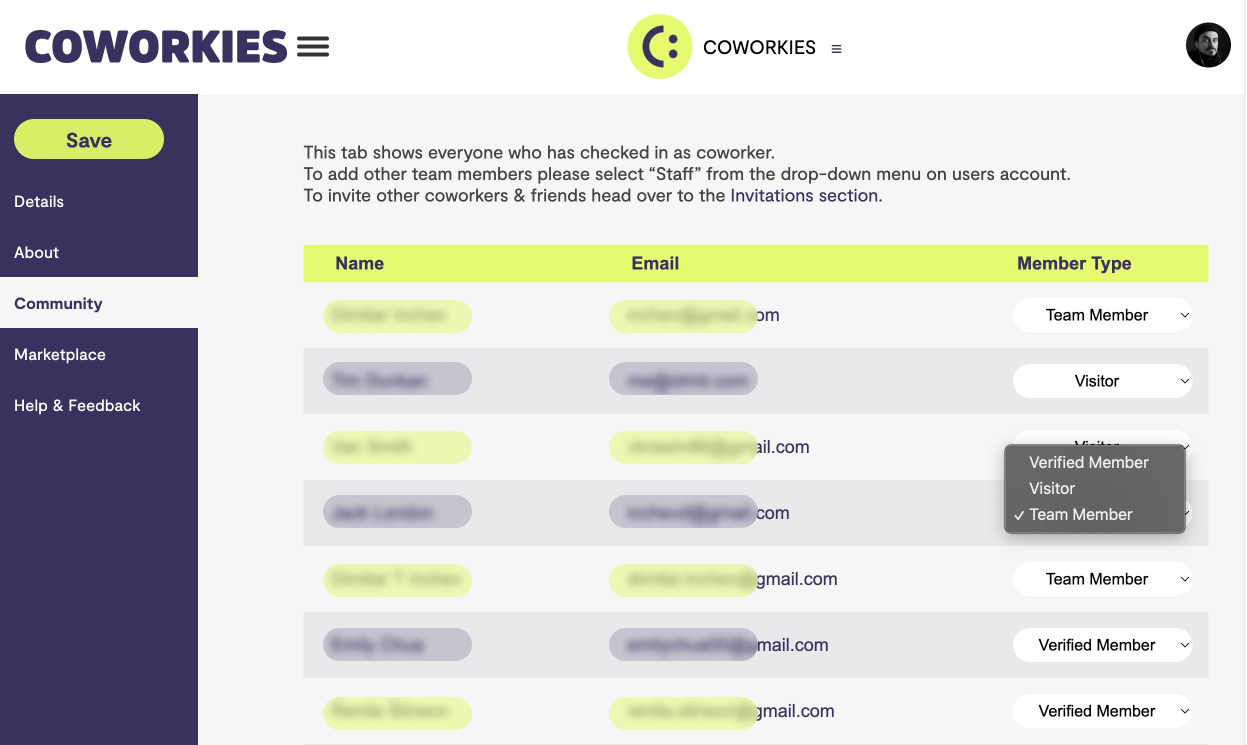
- Team Section - For managing administrative staff (people who can edit space information)
- Members Section - For managing community members (coworkers who use your space)
For information about managing community members, see our Space Members Management guide.
Team Member Types
There are two types of team members with administrative access:
Admins (Owners)
- Full Control - Complete access to all space settings and features
- Ownership - Typically the space owner or primary administrator
- Permissions - Can manage all aspects of the space, including team members
- Cannot be Removed - Admins are permanent and cannot be deleted by other team members
Staff (Team Members)
- Edit Access - Can update space information and manage content
- Limited Permissions - Can manage jobs, members, and space details
- No Team Management - Cannot add or remove other team members
- Removable - Can be removed by admins if needed
Adding Team Members
To add a new team member:
- Navigate to the Team section
- Look for the “Add Team Member” option
- Enter the person’s email address or username
- Select their role (Staff)
- Send the invitation
The invited person will receive an email notification and can accept the invitation to gain admin access.
Managing Team Members
Viewing Team Members
The Team section displays:
- Team member names
- Email addresses
- Role (Admin or Staff)
- Date added (if available)
Removing Team Members
To remove a staff member:
- Find the team member in the list
- Click the remove or delete option
- Confirm the removal
Note: Only admins can remove team members. Staff members cannot remove other team members.
Permissions Overview
What Team Members Can Do
Staff members with admin access can:
- Edit space details (name, description, images)
- Manage job postings
- Manage community members
- Access marketplace and deals
- View analytics (if Pro)
- Update space information
What Team Members Cannot Do
Staff members cannot:
- Remove other team members
- Change space ownership
- Delete the space
- Modify billing information (typically)
Best Practices
Team Management
- Limit Access - Only add team members who need administrative access
- Clear Roles - Ensure team members understand their permissions
- Regular Review - Periodically review who has admin access
- Remove Access - Remove team members who no longer need access
Security
- Trusted Members - Only invite people you trust with admin access
- Email Verification - Ensure team members use verified email addresses
- Regular Audits - Check your team list regularly
- Documentation - Keep track of who has access and why
Troubleshooting
Cannot Add Team Member
If you can’t add a team member:
- Verify you have admin permissions
- Check that the email address is correct
- Ensure the person has a Coworkies account
- Contact support if issues persist
Team Member Not Receiving Invitation
If an invitation isn’t received:
- Check spam/junk folders
- Verify the email address is correct
- Resend the invitation
- Have the person check their Coworkies account notifications
Related docs
- Space Administration – Admin panel overview
- Space Members – Managing community members